
Your PS5 can broadcast your gameplay live to YouTube or Twitch on its own, with no PC involved. You link your streaming account to your PlayStation account once, and from then on you go live with the Create button on the DualSense. This guide covers how to link the account, how to start a broadcast step by step, what viewers see and what stays hidden, which settings matter (quality, party audio, camera, chat) and how it works with PS VR2. Everything follows Sony’s support pages as of 20 October 2026.
What you need before you go live
There is only one hard requirement: a YouTube or Twitch account linked to your PlayStation account. The rest is optional.
- A linked streaming account – YouTube or Twitch. You link it once and you are done.
- A microphone – if you want to commentate. You switch microphone audio on in the broadcast settings. Our guide to PS5 headphones explains how to connect a headset.
- A camera – only if you want to appear on stream. More on that below.
How to link YouTube or Twitch to your PS5
Broadcasting requires your streaming account to be linked to your account for PlayStation. Sony gives you two ways to do it: link it the first time you start a broadcast, or link it in advance from the home screen. Sony’s general guide is on its page about linking streaming services.
If your broadcast gets stuck on “preparing”, two-factor authentication may be the reason. According to Sony’s support, some streaming services require it, so you may need to turn it on for your linked YouTube or Twitch account.
To check whether a service is already linked, press the PS button to open the control centre and select Broadcast. Linked services show Linked next to them.
How to start a broadcast, step by step
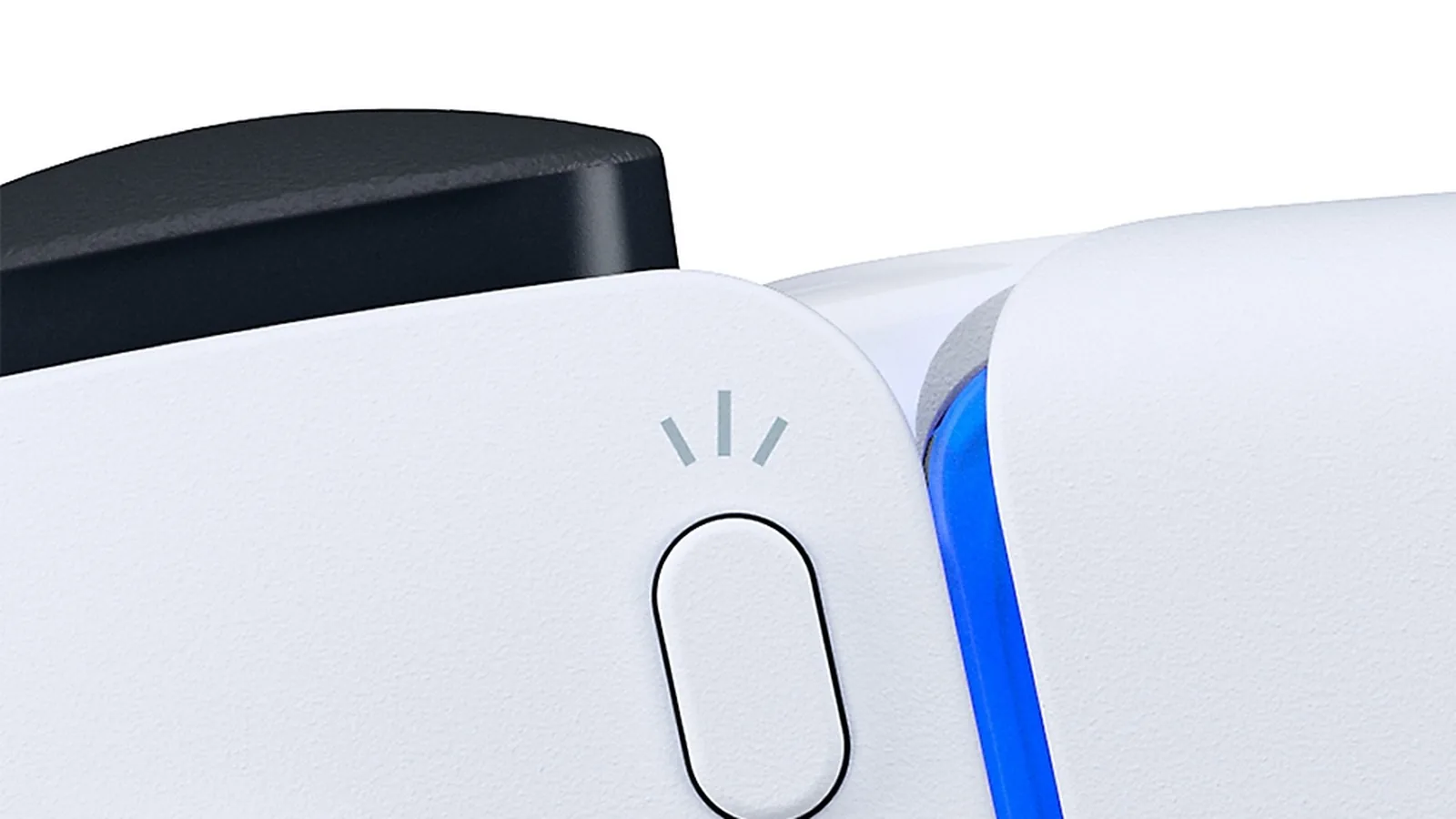
- While playing, press the Create button and select Broadcast.
- Choose the streaming service you want to use (YouTube or Twitch).
- Enter your broadcast information.
- To add video from your camera or audio from your party, select Broadcast Options and adjust them.
- When everything is ready, select Go Live. Your broadcast starts.
Once you are live, a broadcast card appears in the control centre so you can keep an eye on the stream while you play.
What viewers see and what stays hidden
Only your game screen and game audio are shared. Other screens, such as the console menus or app screens, are not visible to viewers. Depending on the game, some scenes may not be shown to viewers at all.
Keep in mind that your broadcasts can reach a wide public audience. You do not limit who can watch on the PS5 itself but in the privacy settings of your linked YouTube or Twitch account.
Broadcast settings: quality, audio, camera and chat
The detailed options live under Settings > Captures and Broadcasts > Broadcasts on the home screen. Sony groups them like this:
| Setting | What you control |
|---|---|
| Video Quality | Resolution and frame rate of the broadcast. Available resolutions vary by service. |
| Audio | Whether microphone audio and party audio are included. |
| Camera | Position, size, brightness and other image settings for your camera feed. |
| Overlays | Whether viewer comments and new viewer alerts appear on screen, and where. |
| Chat to Speech | Viewer text comments are read aloud during the broadcast. Only available in supported languages. |
We deliberately do not list specific resolutions or frame rates here. Sony does not publish them because they depend on whether you stream to YouTube or Twitch. You will see what your service offers directly in the Video Quality menu.
Using a camera on stream
If you want to appear in your broadcast, the PS5 supports two Sony cameras: the HD Camera (CFI-ZEY series) and the PlayStation Camera (CUH-ZEY series). Both are sold separately. You add the camera feed through Broadcast Options when you go live and fine-tune its position, size and brightness in the broadcast settings.
Party voice chat in your broadcast
When you play with friends in a party, you can include their voices in the broadcast too. Sony is clear about one thing: let your party members know ahead of time that their voices will be part of your stream. Party audio is switched on or off under Audio in the broadcast settings.
Broadcasting from PS VR2
You can also broadcast games played on PlayStation VR2. Starting the stream works exactly the same: Create button, Broadcast, pick a service and Go Live. The difference is what viewers get: only the game screen and, if connected and set up, video from your HD Camera. When you leave the game or switch on see-through view, viewers see a blank screen with a message.
How to find other players’ broadcasts
Your PS5 can also play other people’s broadcasts. You will find them in three places:
- A game’s hub – broadcasts of games you own.
- Explore in games home – live broadcasts of games you play.
- A player’s profile – their live broadcast and archived broadcasts.
Broadcast is not Share Screen or Remote Play
A few PS5 features are easy to mix up. Broadcast sends your game publicly to YouTube or Twitch. Share Screen, also in the Create menu, is a different feature that streams your gameplay only to members of your party. If you would rather save a recording and upload it later, read our guide to PS5 captures. And Remote Play lets you play your own PS5 from another device, which has nothing to do with streaming to an audience.
Join our Discord to meet players who stream from their PS5 and swap tips on settings and your first broadcast: GamersTogether Discord.
FAQ
No. The PS5 broadcasts to YouTube and Twitch by itself. You only need to link your streaming account to your PlayStation account and start the broadcast with the Create button.
Open the control centre, select Broadcast and look for Linked next to the service.
No. Only the game screen and game audio are shared, other screens including apps stay hidden. Some games may also hide certain scenes.
The HD Camera (CFI-ZEY series) or the PlayStation Camera (CUH-ZEY series). Both are sold separately and you add them through Broadcast Options.
Use the privacy settings of the YouTube or Twitch account that is linked to your PS5.
Information verified on 20 October 2026. For more PS5 guides, head to our PlayStation section.