
Setting up Steam Machine takes a few minutes: connect it to a TV or monitor, plug in a controller, run through the first-boot wizard (network and Steam sign-in) and install updates. After that you fine-tune the picture, HDMI CEC and, if you want, a microSD card. Everything below follows Valve’s official support pages as of 12 November 2026, with menu paths exactly as Valve writes them.
Before you start: what you need and where to put it
- A TV or monitor with HDMI or DisplayPort. Steam Machine has no screen of its own.
- A controller, or a mouse and keyboard. You can’t finish the setup wizard without one of them.
- A Steam account. It is free, and Steam is for users aged 13 and over.
- An internet connection over Wi-Fi or an Ethernet cable.
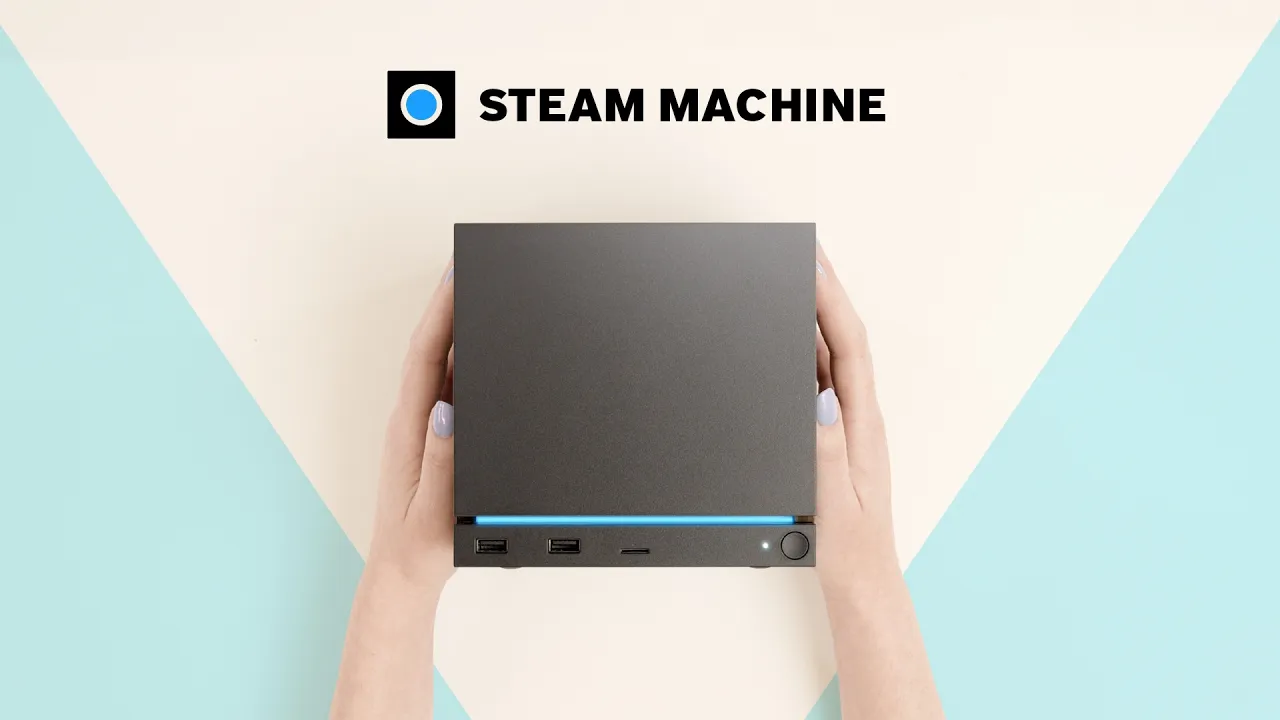
Put the Machine on a hard, flat surface so it stands on its feet. Don’t stack anything on top and keep it off the carpet. Avoid closed cabinets too: Valve recommends leaving a few centimetres of space around it and at least one open side, otherwise it can overheat. A Wi-Fi router or poorly shielded USB 3 drives right next to the Machine can interfere with wireless connections. According to Steam Support, the Machine is meant to run at ambient temperatures of up to 35°C.
Connecting a TV or monitor
Steam Machine has HDMI 2.0 (up to 4K at 120Hz, HDR, FreeSync, CEC) and DisplayPort 1.4 (up to 4K at 240Hz or 8K at 60Hz, HDR, FreeSync). You can connect more than one display, but Gaming Mode only uses one at a time. If HDMI is connected, it takes priority.
If you want to run DisplayPort into an HDMI input on your TV, you need an active adapter or cable. Passive ones are not supported. If the picture does not come up, connect the Machine directly to the display, without a receiver, soundbar or switch in between.
First-boot wizard (controller, network, account)
The first time you power it on, Steam Machine walks you through setup. Valve’s steps:
- Connect a controller. Plug the Steam Controller from your bundle (or one you already own) into one of the front USB ports with the included cable before you start. It pairs with the built-in wireless adapter during setup, so you don’t need the Puck with the Machine.
- Third-party gamepad? Plug it in over USB and use it to finish the wizard. Pair it over Bluetooth once setup is done.
- Join your network. Pick your Wi-Fi and enter the password, or use Ethernet.
- Sign in to Steam. Your whole library appears once you are logged in.
To change networks later, go to Steam Menu > Settings > Internet. Everything about the controller itself is in our Steam Controller guide.
System and firmware updates
Install every available update right after first boot. Valve lists this as the first step for any problem, too.
Steam Menu > Settings > System > Software Updatesfor SteamOS.Steam Menu > Settings > System > Hardware Updatesfor the Machine’s own firmware.Steam Menu > Settings > Controllerfor Steam Controller, Puck and built-in adapter updates.
Steam Machine runs the same SteamOS as Steam Deck. We track the current version and what changed on our SteamOS latest version page.
4K, HDR and picture settings
The default game resolution is 1080p, labelled “Default” in the settings. It is also the resolution Valve uses for Verified testing. You can switch to 4K globally in Settings > Display, or per game in each game’s own settings. What kind of performance to expect at higher resolutions is covered in our guide to Verified games.
Under Settings > Display > Advanced you’ll find:
- the HDR toggle,
- SDR content brightness,
- native colour temperature,
- RGB output range.
On the TV side, check the HDMI format, colour depth and RGB range. Valve also suggests turning off any “AI” picture enhancement.
Turning on the TV and waking with a controller (HDMI CEC)
Want the TV to switch on when the Machine wakes from sleep? The TV must be connected over HDMI with HDMI CEC enabled. On the Machine, go to Settings > Power > HDMI CEC and enable “Turn on TV when resuming from sleep”.
A Steam Controller connected through the built-in adapter or a Puck can wake the Machine from sleep. So can a gamepad connected over Bluetooth.
More controllers over Bluetooth
- Make sure Bluetooth is on in
Steam Menu > Settings > Bluetooth. - Put the controller into pairing mode (check its manual for how).
- Use another controller or a keyboard to select it in the list and pair.
No second input device? Connect the controller with a cable first, go to Settings > Controller > Add Controller and confirm. Then unplug it and put it into pairing mode, the Machine pairs with it automatically. If the controller does not show up in the list, turn on “Show all devices”. This works for Xbox and PlayStation controllers as well.
Valve says many Xbox controllers need a firmware update from a PC first (the Xbox Accessories app, “Update on PC”). Updating from an Xbox console may not be enough. To see the shortcuts for a specific controller, long-press the Steam, PS or Xbox button and choose “Show Controller Shortcuts”.
MicroSD card and storage
The microSD slot is on the front. A new card has to be formatted first: insert it, go to Settings > Storage, select the card and choose “Format” from the options. Any UHS-I card (class 3 or better) is supported. UHS-II and UHS-III cards work too, but without their higher speeds.
If you already have a card with games from your Steam Deck, just put it into the Machine and play, no extra steps needed.
Desktop Mode
You get to Desktop Mode via Steam Menu > Power > Switch to Desktop. It is a standard Linux desktop (KDE Plasma) that you navigate with a mouse and keyboard or a Steam Controller. Apps install through the Discover store as flatpaks. To get back to Gaming Mode, use the “Return to Gaming Mode” icon on the desktop or go to Application Launcher > Session > Log Out.
Light bar, power and care
You can change the light bar’s colour and brightness in Settings > Customization. The Machine is only fully off when you unplug it from the wall. Wipe the outside with a dry microfibre cloth. Don’t vacuum the fan or blast it with compressed air, the blades can spin fast enough to damage it. If something isn’t working, our troubleshooting guide has Valve’s fixes.
Join our Discord if you get stuck, other players are happy to help with setup. Find us on Discord GamersTogether.
FAQ
A TV or monitor, a controller or a mouse and keyboard, an internet connection and a Steam account. Plug the bundled Steam Controller into a front USB port with the cable before you start.
No. Steam Machine has a built-in adapter for Steam Controller, and the controller pairs with it directly during setup.
Change the resolution in Settings > Display, either globally or per game. Turn on HDR in Settings > Display > Advanced.
Yes, over USB or Bluetooth. Valve says Xbox controllers often need a firmware update from a PC first.
Yes. Put the card with your Steam Deck games into the Machine and play them without any extra setup.
Information verified on 12 November 2026. We keep prices and the waitlist status up to date. All guides are in the Steam Machine hub, and the overview is in our Steam Machine overview.