
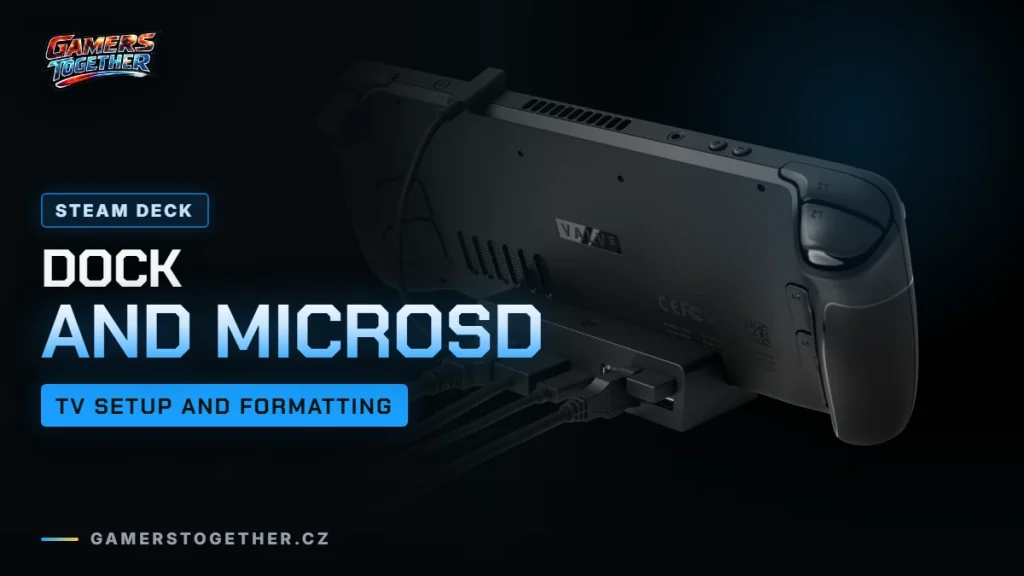
The official Steam Deck Docking Station costs €89.00 on Steam (as of 20 October 2026, incl. VAT), but on that date it is out of stock. You can still connect the Steam Deck to a TV or monitor with an ordinary USB-C hub, as long as it is standards-compliant and supports Power Delivery passthrough. This guide covers the official dock’s ports, what to expect from third-party hubs, how to fix a black screen on your TV, and which microSD card to buy and how to format it. It applies to both the Steam Deck OLED and the Steam Deck LCD.
The official Docking Station: ports and specs
Valve’s dock fits both the OLED and the LCD model. Use it to hook the Deck up to a TV and play with wireless controllers, or connect it to up to two external displays with a keyboard and mouse.
| Spec | Docking Station |
|---|---|
| USB | 3× USB-A 3.1 Gen1 |
| Network | Gigabit Ethernet |
| Video | DisplayPort 1.4 and HDMI 2.0 (up to 4K 60 Hz or 1440p 120 Hz) |
| Multiple monitors | MST (currently requires both HDMI and DisplayPort) |
| Adaptive sync | FreeSync (VRR) |
| Power | USB-C PD input, power supply with 1.5 m cable |
| Cable to the Deck | fixed, 6″, 90° angled connector |
| Size and weight | 117 × 29 × 50.5 mm, approx. 120 g |
| Price on Steam | €89.00 incl. VAT, out of stock as of 20 October 2026 |
Valve hasn’t said when the dock will be back in stock. Check the current status on the Docking Station page; prices for the Deck itself are in our Steam Deck price guide.
Does the dock boost performance?
No. The Steam Deck runs at full performance in your hands, and docking doesn’t change that. If you want more frames or a smoother picture on the TV, adjust the in-game settings and the Quick Access Menu; see our performance settings guide.
Third-party USB-C hubs and docks
You don’t need the official dock. According to Valve support, most standards-compliant USB-C hubs and docks work. When choosing one, keep an eye on these points:
- Power Delivery passthrough: to charge the Deck while docked, the hub must support USB-C Power Delivery passthrough. Some docks keep part of the power for themselves, and the Deck then reports “slow charge”.
- Thunderbolt and DisplayLink: they may work, but they aren’t officially supported.
- DisplayPort to HDMI adapters: passive adapters aren’t supported; use an active cable or adapter.
- Cables: Valve recommends DisplayPort 1.4 and HDMI 2.0 or newer.
The Deck’s own USB-C port handles video output over DisplayPort at up to 8K 60 Hz or 4K 120 Hz, plus USB 3.2 Gen 2. An external graphics card (eGPU), however, isn’t supported on the Steam Deck.
Connecting to a TV or monitor
Once an external display is connected, the Deck’s own screen turns off in Gaming Mode. That is expected behaviour, not a fault. You can only use both screens at once in Desktop Mode.
The external display stays black
- Disconnect the Deck from the dock.
- In the Display settings, turn on External display safe mode. The Deck then picks a low resolution and refresh rate for the external screen.
- Connect the Deck again.
If the picture doesn’t fit the TV or gets cut off, turn off Automatically Scale User Interface and fine-tune it with the slider. On the TV itself, look for an Overscan option. Also switch the TV to its Game Mode and turn off motion smoothing.
Dock firmware updates and reset
To update the official dock’s firmware, plug both the power supply and the Deck into the dock, restart the Deck, then unplug the Deck and the power supply, wait 10 seconds and plug everything back in. The update starts on its own.
If the dock misbehaves, reset it by disconnecting everything: the Deck, the dock, the power supply and the display cables. The dock also draws power from the Deck, so pulling only the power supply isn’t enough.
Bluetooth controllers while docked
Bluetooth runs on 2.4 GHz. When you play docked with wireless controllers, connecting the Deck via the dock’s Ethernet port or via 5 GHz Wi-Fi improves Bluetooth. The Steam Deck OLED has Bluetooth 5.3 with aptX HD and aptX Low Latency codecs and a dedicated antenna. Xbox controllers often need a firmware update (via a PC) to work properly with the Deck.
Which microSD card for the Steam Deck
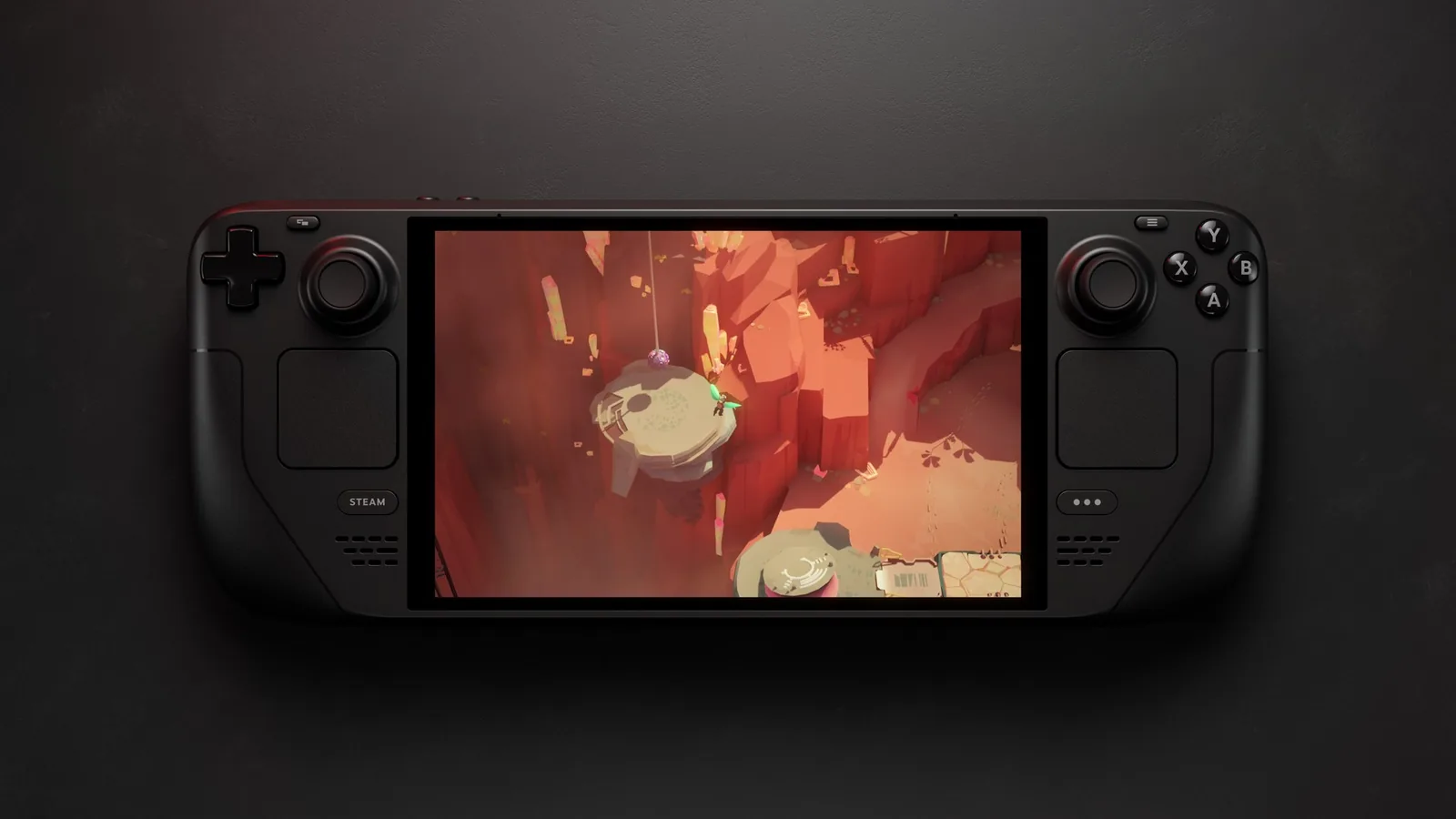
Both Steam Deck OLED models on sale have an internal NVMe SSD of 512 GB or 1 TB and a high-speed microSD slot. According to Valve’s guide, the Deck supports any UHS-I card rated Class 3 or better. The slot takes SD, SDHC and SDXC cards. UHS-II and UHS-III cards should work, but the Deck can’t make use of their higher speed.
Formatting a microSD card
- Insert the card into the slot on the bottom edge of the Deck.
- Go to Steam > Settings > System and select Format SD card.
- Wait a few minutes for formatting to finish.
Format the card on the Deck itself, not on a computer. The Deck formats it as ext4.
Moving games between the drive and the card
Manage storage under Steam > Settings > Storage. That is where you set the default location for new installs and move games between the internal drive and the card.
Replacement parts and opening the Deck
Official replacement parts and repair guides are available from iFixit in partnership with Valve. Valve doesn’t recommend opening the Deck, though, and damage caused while doing so isn’t covered by the warranty. The back cover of the Steam Deck LCD uses Phillips size 1 screws, the Steam Deck OLED uses Torx T6.
If the dock or the display still won’t work after a reset, go through our guide for when the Deck isn’t working. For how the Deck compares with other handhelds, see our handheld buying guide.
Join our Discord and ask other players which hubs and TVs work with their Deck: GamersTogether Discord.
FAQ
No. According to Valve, most standards-compliant USB-C hubs and docks work. To charge the Deck while docked, the hub needs USB-C Power Delivery passthrough.
It costs €89.00 including VAT on Steam. As of 20 October 2026 it is out of stock, and Valve hasn’t said when it will return.
That is expected behaviour in Gaming Mode. You can only use both screens at once in Desktop Mode.
Any UHS-I card rated Class 3 or better (SD, SDHC or SDXC) will do. UHS-II and UHS-III cards should work, but the Deck can’t use their higher speed.
No. The Deck runs at full performance in your hands, and docking doesn’t change that.
Information verified on 20 October 2026. Find more guides in our Steam Deck guides section.