
You can tune Steam Deck performance and battery life right in the system, no extra software needed. A 30 FPS cap saves the most battery; TDP and manual GPU clock are for people who know what they are doing. This guide applies to the Steam Deck OLED and the Steam Deck LCD and to SteamOS 3.8.28, the stable release as of 20 October 2026.
Where to find the performance settings
Press the … button on the Deck. This opens the Quick Access Menu; the battery icon takes you to the Performance menu.
At the top is the Performance Overlay. It shows your FPS, and higher levels add GPU and CPU usage and more. Turn it on before you change anything.
Next, enable Use per-game profile. With it, every game keeps its own performance settings, so a cap you set for one game does not affect the others. Turn the profile on before you start changing settings.
What each setting does
Some options only appear in the advanced view of the Performance menu:
| Setting | What it does | When to use it |
|---|---|---|
| Framerate Limit | caps frames per second | always first when you want longer battery life |
| Refresh Rate | display refresh rate (LCD up to 60 Hz, OLED up to 90 Hz) | when saving battery |
| Thermal Power (TDP) Limit | caps APU power draw, upper limit 15 W | only if you know what you are doing |
| Manual GPU Clock | fixed GPU clock, up to 1,600 MHz | only if you know what you are doing |
| Scaling Filter | how the image is upscaled, includes FSR | when a game runs below 1280×800 |
Start with a 30 FPS cap
Capping the game at 30 FPS with Framerate Limit is the most effective battery saver. PC Gamer measured 147% longer battery life in God of War after switching from 60 to 30 FPS, and other outlets agree that 30 FPS or lower gives the biggest gain.
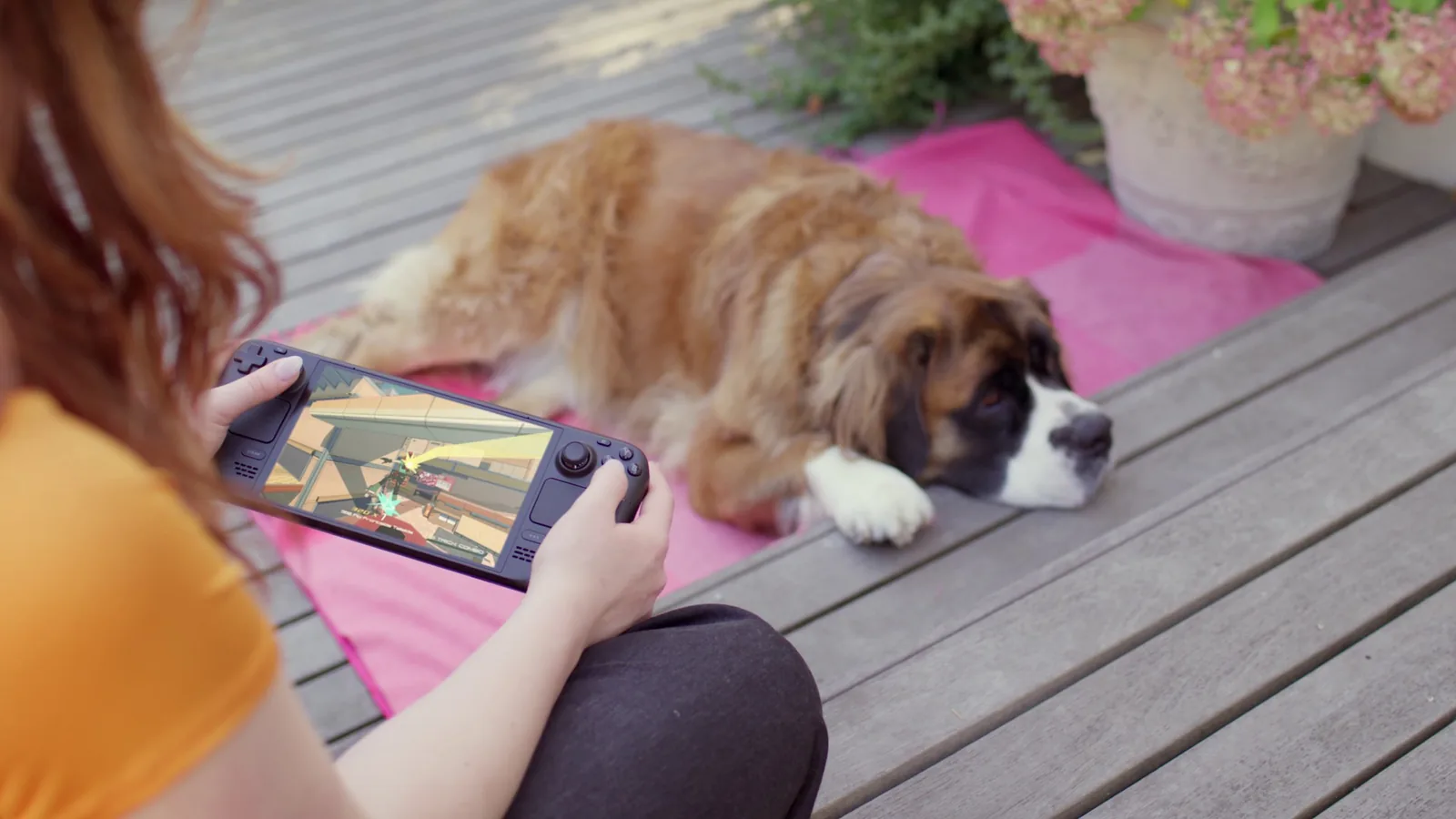
Valve’s own battery estimate on the store page is based on 30 FPS: the Steam Deck OLED lasts 3 to 12 hours at 30 FPS with brightness and volume at 50%. Uncapped FPS, higher brightness or louder audio drain the battery faster. According to Valve, the OLED lasts 30 to 50% longer than the LCD, which Valve rates at 2 to 8 hours.
TDP and GPU clock: handle with care
Thermal Power (TDP) Limit caps how much power the APU may draw. Valve lists the APU at 4 to 15 W, and 15 W is also the top of the limit. Manual GPU Clock pins the GPU to a fixed clock, at most 1,600 MHz (1.6 GHz), which is the Deck’s maximum.
Both can behave unpredictably, especially at low values. If you are not sure, stick with the FPS cap. We deliberately give no per-game values here.
FSR: sharper image at lower resolution
Under Scaling Filter you can switch to FSR (AMD FidelityFX Super Resolution). It makes sense when you set a game to a resolution below the native 1280×800. FSR then sharpens the image without costing FPS. At native resolution you do not need it.
Display refresh rate
A lower Refresh Rate saves battery. The Steam Deck LCD tops out at 60 Hz, the Steam Deck OLED at 90 Hz. According to Valve support, setting a game above your model’s limit does not improve performance, it only drains the battery. SteamOS 3.8 also improved VRR smoothness and fixed the FPS limit when downscaling and per-app performance settings, so keep your system up to date.
Dock and charging
Docking does not boost performance; the Deck runs at full power in your hands too. What the dock does and how to connect a TV is covered in our dock and microSD guide.
The Steam Deck has no fast charging (no Fast Charge or Quick Charge); it charges over USB Power Delivery. If it sits on the charger for a long time it may show less than 100%. That is intentional, to protect the battery.
Settings for specific games
Whether a game runs at all is shown by its Deck Verified rating. Settings for specific titles are in our guide to Marvel Rivals and in our system requirements guides, such as Cyberpunk 2077.
Join our Discord to compare what works on the Deck with other players: Discord GamersTogether.
FAQ
Press the … button on the Deck and choose the battery icon (Performance) in the Quick Access Menu. Advanced options such as TDP and GPU clock are in the advanced view.
A 30 FPS cap with Framerate Limit helps the most. You can also lower the refresh rate, brightness and volume. Valve’s 3 to 12 hour OLED estimate assumes 30 FPS and 50% brightness.
The TDP limit tops out at 15 W, and Valve lists the APU at 4 to 15 W. The manual GPU clock goes up to 1,600 MHz.
When you set a game to a resolution below 1280×800. FSR then sharpens the image without losing FPS. At native resolution there is no point.
No. The Steam Deck runs at full power handheld too; the dock only adds ports and a connection to a TV or monitor.
Information verified on 20 October 2026. Find more guides in our Steam Deck guides section.