
Parental controls on Nintendo Switch 2 apply to the whole console at once, and the free Nintendo Switch Parental Controls smartphone app does the most: daily limits, bedtime, play activity and GameChat approvals. This guide shows what you can set on the console itself, what needs the app, how to let your child use GameChat safely and where eShop spending is controlled. Everything follows Nintendo’s information as of 20 October 2026.
Three places to set parental controls
One thing first that surprises parents of more than one child: parental controls apply to the whole console, not to individual users. Set them for the youngest player who uses the Switch 2.
| Where | What you can set there |
|---|---|
On the console (System Settings → Parental Controls) | Games by age rating, posting to social networks, communication with others, VR mode, PIN |
| Nintendo Switch Parental Controls app (free, smartphone) | Daily limit, bedtime, suspending software, play activity, exceptions, GameChat, sharing with a second parent |
| Nintendo Account | Nintendo eShop purchase restrictions and information sharing |
Settings on the console
Without a phone you can set the basic restrictions under System Settings → Parental Controls. You get:
- Age rating restrictions: in Europe based on PEGI. Games above the level you choose will not start on the console.
- Posting to social networks: blocks sharing screenshots and videos.
- Communication with others: restricts in-game communication.
- VR mode: Nintendo recommends restricting it if a child aged 6 or under uses the console.
- PIN: 4 to 8 digits, it protects your parental control settings. Pick one your child will not guess.
Time limits and bedtime are set in the smartphone app.
The smartphone app: limits, bedtime and activity
The Nintendo Switch Parental Controls app is free and links to your console. It offers the most options:
- Daily play time limit of up to 6 hours, which you can set separately for each day of the week, for example more at weekends.
- Bedtime anywhere between 16:00 and 23:45, after which play stops.
- Suspend software when the limit is reached.
- Play activity: what your child played and for how long.
- Exceptions (safelist): selected games that age restrictions do not apply to.
- Sharing with a second parent, so both of you can manage the settings.
Other platforms work in a similar way. If your child also plays on PlayStation, see our guide to PS5 parental controls.
GameChat for kids: what a parent has to approve
GameChat is voice chat for up to 12 people plus screen sharing or video chat for up to 4. It only works on Switch 2 and starts with the C Button on the right Joy-Con 2. It is part of the Nintendo Switch Online membership. The free welcome offer ended on 31 March 2026, so a membership is now required. Prices are in our guide to Nintendo Switch Online.
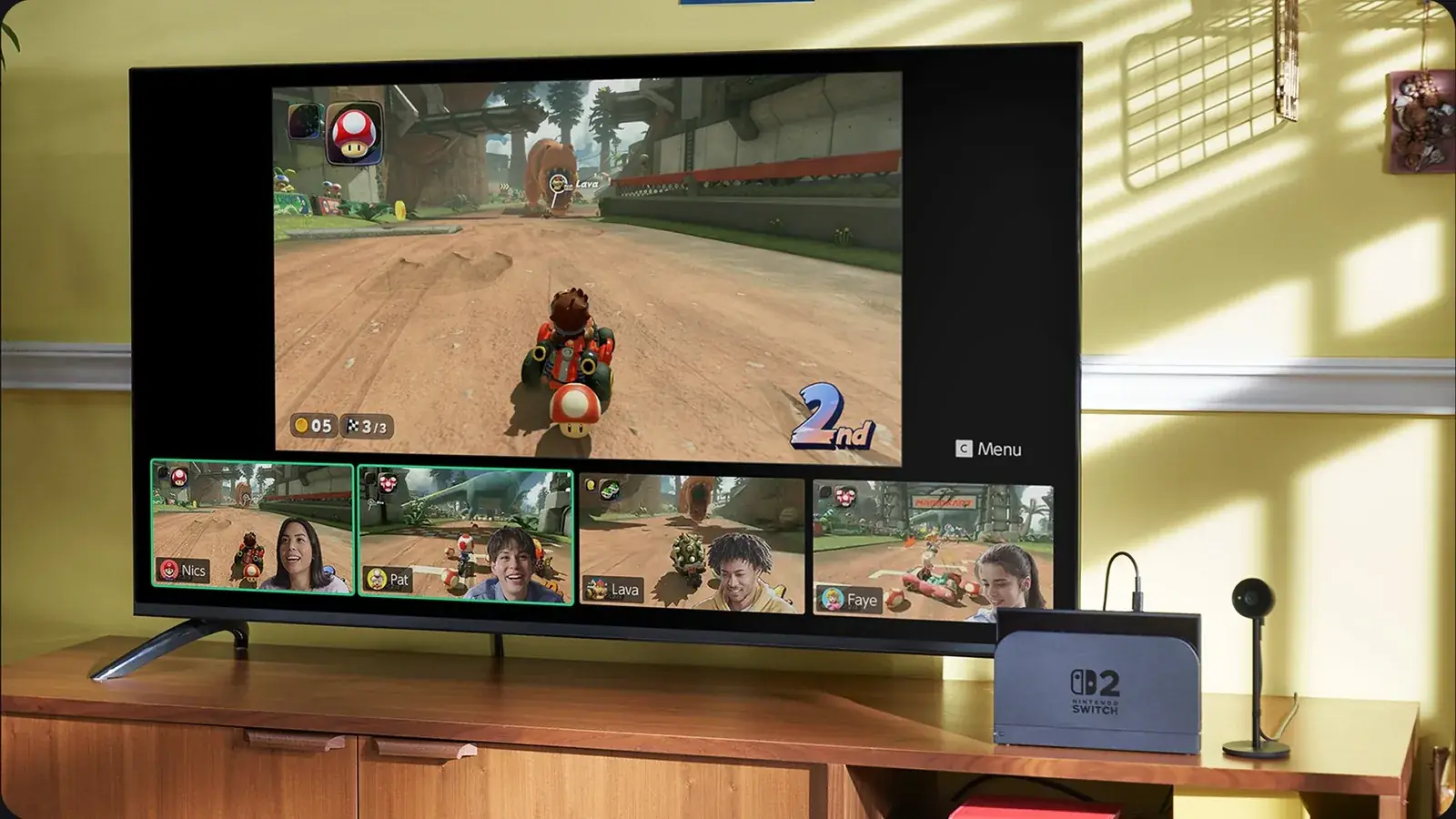
Children need a parent’s consent in the Nintendo Switch Parental Controls app to use GameChat. In the app, the parent:
- allows GameChat for the child,
- approves the specific friends the child may chat with,
- chooses whether video chat always needs approval or is not allowed at all,
- can see who the child chatted with and for how long.
The parent needs a phone number on their Nintendo Account. GameChat in general requires SMS verification, and you can only chat with friends on your list.
One trap to avoid: the general communication restriction in the console settings does not cover GameChat. GameChat is managed separately, in the app.
Camera and recordings
Video chat needs a compatible USB-C camera, such as the Nintendo Switch 2 Camera, sold separately. It has a privacy shutter and a green light shows when it is on. GameChat recordings are stored only on the console, for up to 24 hours. Nintendo receives the last 3 minutes only if another player is reported. Where the camera plugs in is covered in our Switch 2 specs guide.
eShop purchases
Spending in Nintendo eShop is not controlled by the console or the smartphone app but by the Nintendo Account. That is where you restrict purchases and information sharing. If your child plays free-to-play games with in-game purchases, such as Fortnite, also read our Fortnite parental controls guide. For Minecraft there is our Minecraft parents guide.
Moving from Switch 1
If your child is moving from the original Switch, you do not have to set anything up again. Parental Controls and the link to the app carry over with the system transfer. How it works is explained in our system transfer guide.
Nintendo explains every option on its Parental Controls support page and in its GameChat guide for parents.
Join our Discord to ask other parents and players how they have set up their parental controls: GamersTogether Discord.
FAQ
No. Parental controls on Switch 2 apply to the whole console, not to individual users. Nintendo recommends setting them for the youngest player.
Not for the basics. Age ratings, communication, sharing and the PIN can be set on the console. Daily limits, bedtime, play activity and GameChat approvals, however, are only in the Nintendo Switch Parental Controls app.
Children need a parent’s consent in the Nintendo Switch Parental Controls app. The parent allows GameChat, approves specific friends and decides about video chat.
You can set a limit of up to 6 hours a day in the app, separately for each day. You can also set a bedtime between 16:00 and 23:45 and have software suspended when the limit is reached.
Yes. Parental Controls settings and the link to the app carry over in a system transfer to Switch 2.
Information verified on 20 October 2026. More guides for the new console are in our Nintendo Switch 2 section.