
The Xbox app is where you install and launch Game Pass games, games bought from the Microsoft Store and free-to-play titles on a Windows PC. This guide covers what the app needs, how to install a game and its add-ons, how to set up updates, where to change the install drive and what Xbox mode brings to Windows 11 PCs and handhelds. The steps reflect Microsoft’s official support pages as of 20 October 2026, with menu names exactly as Microsoft lists them.
What the app needs
According to Microsoft, you need:
- Windows 10 or 11, version 22H2 or later,
- 150 MB of free space for the app itself,
- a 720p display.
Games have their own requirements, which vary from title to title. If your PC runs Windows in S mode, you may need to switch out of it to play. You can download the app from the Xbox app for PC page on xbox.com.
Signing in and switching accounts
When the app opens, select Sign in, then Sign in again at the bottom of the menu. Windows usually finds your account automatically. If the app shows a profile you don’t recognise, or you want to use a different account, select your gamerpic and go to Settings > Change my Microsoft Store accounts.
Sign in with the same Microsoft account that has your Game Pass subscription and purchased games, otherwise they won’t show up in your library.
How to install a game
Where you find the game depends on how you got it:
- You already own it (for example on a new PC): open My Library. Games you saved for later (Play later) are here too.
- You have Game Pass: open the Game Pass tab and pick a game from the catalog.
- You want to buy it: open the Store tab and search what’s available in your market.
- On the game’s page, select Install and follow the prompts.
Go to My Library > Manage installs to pause, resume or cancel an installation in progress.
Add-ons and individual game content
If you don’t want to install everything, open the game’s page and the Add-ons tab. Tick the items you want on your PC and confirm with Apply changes.
How to manage game updates
Each game can have its own update rule:
- Open My Library.
- Right-click the game and select Manage.
- On the General tab, pick one of the options: As soon as possible (downloads updates right away), According to Settings (follows your Windows settings) or Only when launched (holds updates until you start the game).
Where games install and how to change the drive
The default install drive, desktop shortcuts and automatic downloads all live in one place: select your profile picture and open Settings > Install options. If your PC has more than one drive, this is where you choose where new games go.
If an installation fails, for example because the drive is full, our Xbox error codes overview lists the codes and fixes, including PC errors such as 0x80070070, 0x80070002 and 0x8007045B.
What else the app can do
- Profile and social features: manage your profile, friends, parties and chat. While playing, open chat in Xbox Game Bar with
Win + G. - One library: the app can bring together games from Xbox, Game Pass and games installed from other PC storefronts. You can also link accounts such as Steam, Discord and Twitch.
- Subscriber discount: Game Pass members get a discount on games from the Game Pass library if they want to buy and keep them.
- Xbox Cloud Gaming: play console games from the cloud without installing them. Our cloud gaming guide shows how to start.
- Remote play: play games from your own console on your PC, see our Remote Play guide.
Microsoft notes that the app and some of its features may not be available in every region.
Xbox mode on Windows 11 PCs and handhelds
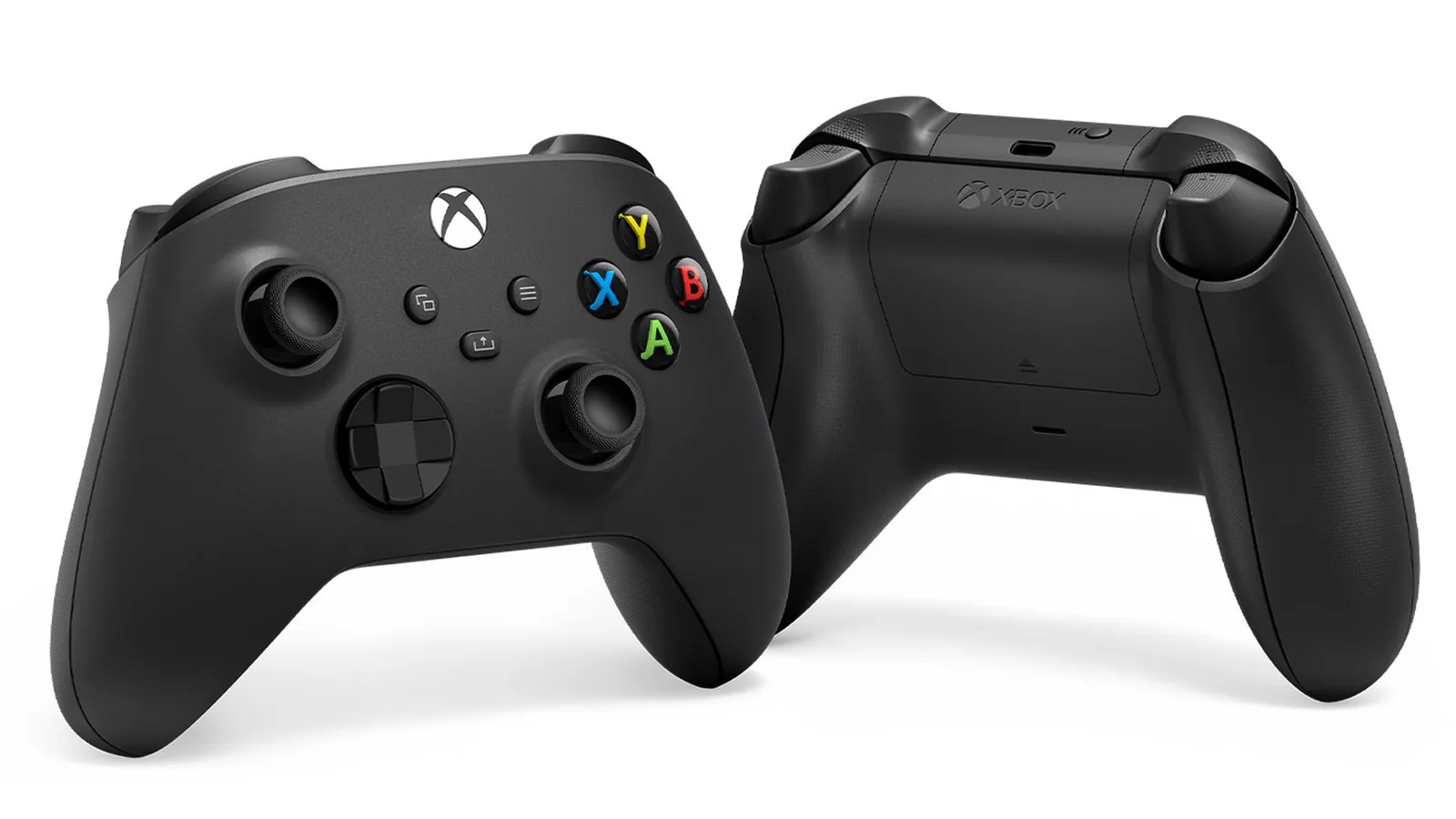
Xbox mode (written XBOX mode by Microsoft) is an interface built for navigating with a controller. It’s designed for gaming PCs and handhelds running Windows 11. To switch between apps, press and hold the Xbox button on your controller or swipe up from the bottom of the screen.
- Turning it on and off: use the toggle in the title bar at the top of the Xbox app.
- Disabling the entry points: Windows Settings > Gaming > XBOX mode > Enable XBOX mode.
- Hiding it from task view: Windows Settings > Gaming > XBOX mode > Show XBOX mode in task view.
Microsoft has more details on its Xbox mode page. For a specific handheld with Xbox mode, read our ROG Xbox Ally article. If you own Xbox Play Anywhere games, they show up in My Library on PC and handheld; more in our Play Anywhere guide.
ARM-based PCs
On an ARM device, a game may not appear in the Xbox app library. In that case, download it from the Microsoft Store app instead. Some games won’t run on ARM at all because of hardware limitations.
PC Game Pass in the app
PC Game Pass includes day-one releases and EA Play, but according to Microsoft it doesn’t include cloud gaming. Prices depend on your country on xbox.com, and our overview of Game Pass tiers compares all the plans.
Offline play, controllers and more
Playing without a connection on Windows is covered on Microsoft’s separate offline mode page. To pair a controller with your computer, see our guide on how to connect a controller. The full description of the app is on Microsoft’s Xbox app support page.
Join our Discord if you get stuck setting up the Xbox app or Xbox mode, other players are happy to help: GamersTogether Discord.
FAQ
Windows 10 or 11, version 22H2 or later, 150 MB of space and a 720p display. Each game has its own separate requirements.
Select your profile picture, open Settings > Install options and set the default drive. Desktop shortcuts and automatic downloads are in the same place.
In My Library, right-click the game, select Manage and choose Only when launched on the General tab. The update then downloads when you start the game.
Use the toggle in the title bar of the Xbox app on a Windows 11 PC or handheld. You can disable the entry points in Windows Settings > Gaming > XBOX mode.
That can happen on ARM devices. Download the game from the Microsoft Store app instead, but bear in mind that some games won’t run on ARM.
Information verified on 20 October 2026. More guides and news are in our Xbox section.