
On Xbox Series X|S and Xbox One you can save the last 30 seconds of play with two button presses, record up to an hour ahead and take a screenshot with a single press of the Share button on the new controller. Here is how it works from the guide (the Xbox button), why console screenshots need Game Pass, plus 4K HDR, PC capture and live streaming. The steps reflect Microsoft’s support pages as of 20 October 2026, with menu names exactly as Microsoft lists them.
Saving what just happened
You don’t need to have been recording. The console can save what has already happened:
- Press the Xbox button to open the guide.
- Press the X button. The last 30 seconds are saved.
- Want a longer stretch? Press the View button instead of X and choose a duration, up to the last 2 minutes.
A screenshot works the same way, just press Y in the guide. One thing to know: the image is taken the moment you press the Xbox button. Pressing Y only saves it.
Recording ahead: up to 10 minutes or an hour
If you know you want to capture what’s coming next (a boss fight, say), start recording manually:
- Start your game and press the Xbox button.
- Select Capture & share > Start recording.
- To stop, open the guide again and press X. You’ll get a message once the clip is saved.
How long a clip can be depends on your clip resolution and free space: up to 10 minutes when capturing to internal storage, up to 1 hour on external storage. If you’re thinking about an external drive, see our guide on how to expand Xbox storage.
The Share button on the new controller
The new Xbox Wireless Controller has a dedicated Share button in the middle. Without opening the guide:
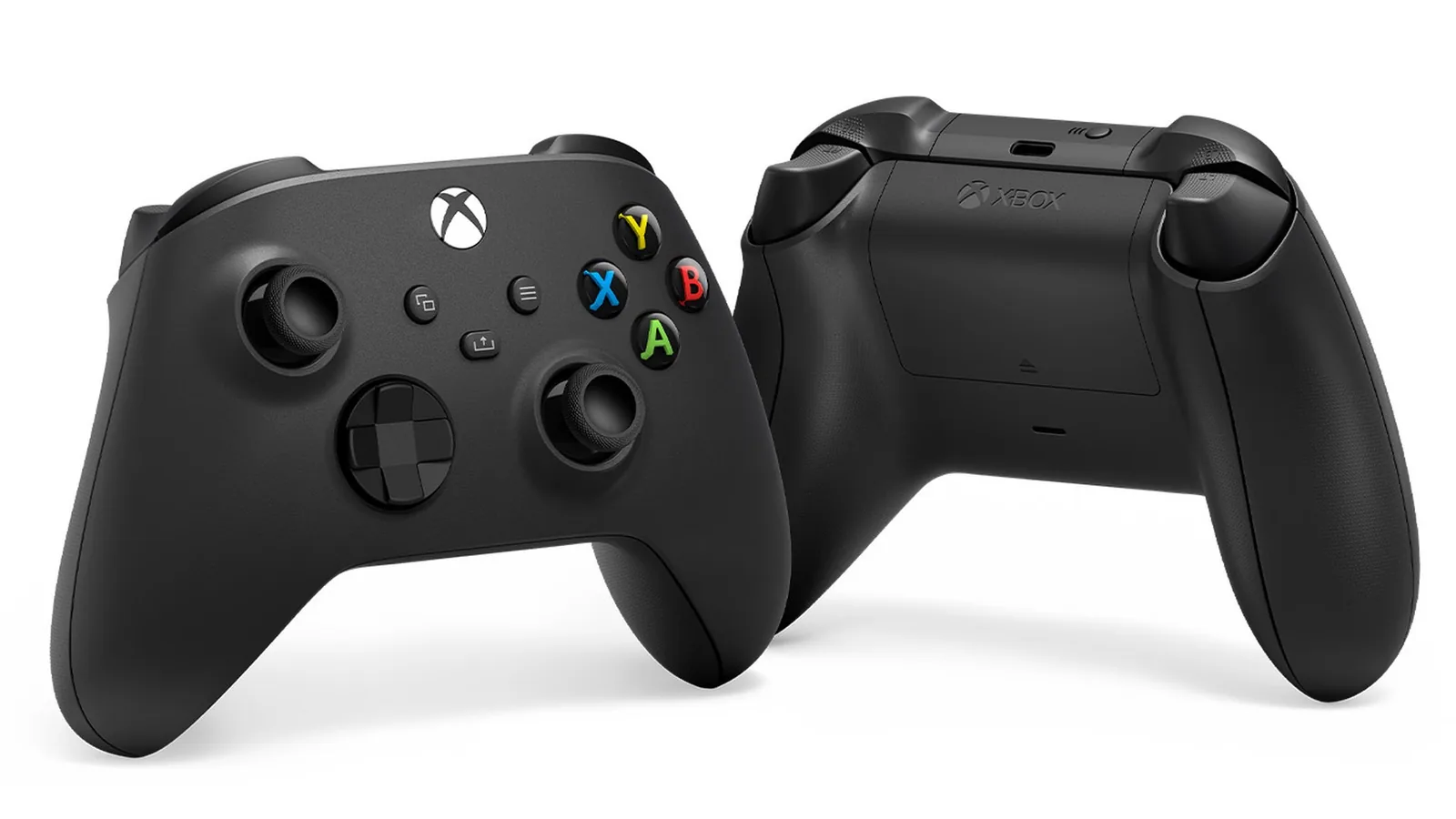
- a single press takes a screenshot,
- press and hold records a game clip.
You can change what the button does in the Accessories app on the console. Assign Capture screenshot, Record what happened or Start recording to either a single press or press and hold.
Where to find your captures
All clips and screenshots are in the guide under Recent captures.
Captures made on your console are automatically uploaded to the Xbox network. If you use the Xbox mobile app, you’ll get a notification there when your latest capture is ready to view and share. You can delete captures from the Xbox network, from your console or from both. To turn off automatic uploads, go to Profile & system > Settings > Preferences > Capture & share > Automatically upload in the guide.
Screenshots on console need Game Pass
This catches a lot of people out: saving and sharing screenshots on an Xbox console requires Game Pass. Without a subscription, you can take screenshots on another home Xbox where someone with Game Pass is signed in. How a home Xbox works and what it shares is explained in our home Xbox guide.
Resolution, save location and 4K HDR
You set your clip resolution and where captures are saved in Profile & system > Settings > Preferences > Capture & share.
Xbox One X and later consoles can capture clips and screenshots in 4K. There are two conditions:
- Your TV output resolution has to be set to 4K.
- In Capture & share, choose one of the 4K options under Game clip resolution.
If your TV has HDR enabled, your captures will be in HDR too. Setting up 4K and HDR on your TV is covered in our Xbox TV settings guide.
What won’t be captured and what to watch out for
- Remote Play: you can’t record game clips while streaming a game with Remote Play. More on that in our Remote Play guide.
- On-screen notifications: a pop-up can end up in a clip or screenshot. Check your captures before you share them.
Capturing on a Windows PC
On Windows 10/11, game captures are handled by Xbox Game Bar. The standard shortcuts are:
Win + Alt + PrintScreentakes a screenshot of your game,Win + Alt + Grecords the last few moments of play.
To change how far back Windows 11 records, go to Settings > Gaming > Captures, turn on Record what happened and pick a length under Record the last. Background recording can affect game performance, so if you notice a difference, try a shorter time.
The Share button has limited functionality on Windows 11: a press takes a screenshot, holding it for 3 seconds starts or stops recording. On Windows 10 the button doesn’t work yet. Game Bar and other PC features tie into the Xbox app.
Live streaming from your console
You can stream your gameplay live from Xbox Series X|S and Xbox One through a streaming provider’s app. Microsoft’s live streaming page doesn’t name specific services.
- Install the provider’s app: guide > Store > Apps, find the app and select Install.
- The first time you sign in, you activate your account with a code: guide > Capture & share > Live streaming and pick the provider.
- To go live, return to Capture & share > Live streaming, change the Destination if you need to and select Go live now.
- If a game is already running, the stream starts when you return to the game. If no game is running, it starts when you launch one.
You stop, pause or resume the stream in the same menu. To switch providers, go to Live streaming > More options > Change live streaming provider. A new provider means going through setup again.
Discord voice channels can’t be broadcast through Xbox live streaming. You can, however, stream straight to Discord, Microsoft has a separate guide called “How to use Discord with XBOX”. The full steps are on Microsoft’s live streaming page, and captures are covered on its capture support page.
Join our Discord to show off your best clips and find people to stream with: GamersTogether Discord.
FAQ
Press the Xbox button, then the X button. For a longer stretch of up to 2 minutes, press the View button and choose a duration.
When you record manually with Start recording, up to 10 minutes on internal storage and up to 1 hour on external storage, depending on resolution and free space.
Saving and sharing screenshots on console requires Game Pass. Without it, you can only do it on another home Xbox where a subscriber is signed in.
No. Discord voice channels can’t be broadcast through Xbox live streaming, but you can stream directly to Discord using Microsoft’s guide.
Information verified on 20 October 2026. More guides and news are in our Xbox section.