
Steam Deck Verified is Valve’s rating that tells you how a game runs on the Steam Deck. There are four labels: Verified, Playable, Unsupported and Unknown. They apply to the Steam Deck OLED and the Steam Deck LCD alike. This guide explains what each label means, how Valve tests games, where you see the rating, how to filter your library and what to try when a game won’t run. Status as of 20 October 2026.
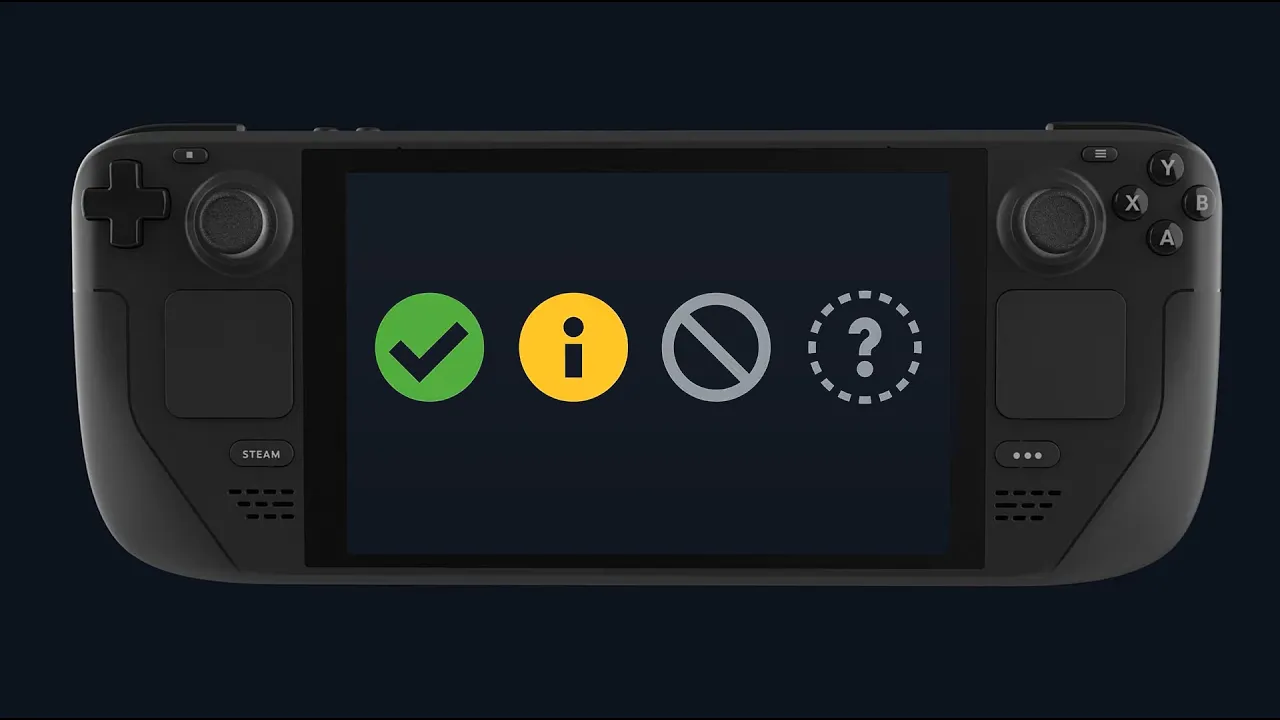
The four Deck Verified labels
| Label | What it means |
|---|---|
| Verified | The game works great right out of the box, no tweaking needed. |
| Playable | The game runs but may need manual tweaks, such as picking a community controller layout or using the touchscreen in a launcher. |
| Unsupported | The game currently does not work on the Deck. |
| Unknown | Valve has not tested the game yet. You can still try it, there is just no information about it. |
The model does not matter. Valve states that nothing changes for the Steam Deck OLED, so a Verified game is Verified on both LCD and OLED.
How Valve verifies a game
To earn Verified, a game has to pass four areas:
- Input: full controller support, correct Deck button icons and an on-screen keyboard that appears automatically when text input is needed.
- Display: support for the Deck’s default resolution of 1280×800 or 1280×720, sensible default settings and legible text.
- Seamlessness: no compatibility warnings, and any launcher must be navigable with a controller.
- System support: the game and its middleware, including anti-cheat, must be supported by Proton.
If a game misses any of these requirements, it does not get Verified. What exactly is missing is listed on its store page (see below).
Why a game ends up Unsupported
Most often because of middleware Proton does not support, typically some anti-cheat systems or media codecs. The second reason is Windows features that Proton does not fully handle. So Unsupported usually does not mean the Deck is too weak for a game, but that the game and SteamOS do not get along yet.
Where you see the rating
In your Deck library
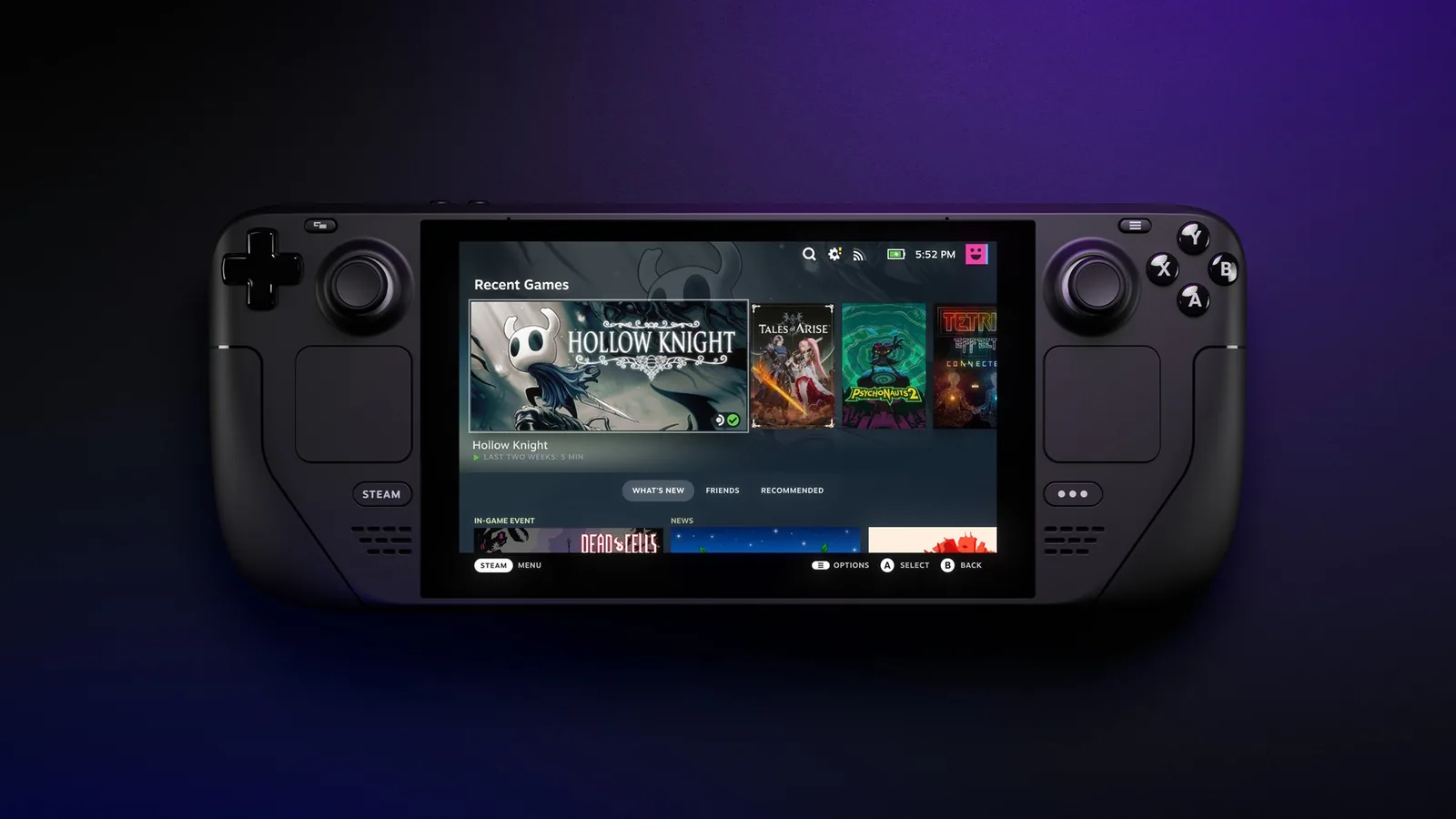
Every game in your library shows a compatibility icon, and you can filter the library by rating. That is the quickest way to see which games you already own will run without any fuss.
In the Steam Store on the Deck
The first tab of the store on the Deck only shows games that are Great on Deck. The other tabs show the full catalogue, including games with lower ratings.
On the game’s store page
For Playable and Unsupported games, the Steam Deck Compatibility section on the Steam Store page lists the requirements the game does not meet. That tells you whether it is a small issue, like tiny text, or a real blocker.
A breakdown of your whole library
Valve’s personalised breakdown on the Steam Deck My Games page shows the compatibility of all your games at once after you sign in. It is handy before buying a Deck. Valve describes the whole programme on its Deck Verified page.
Ratings change over time
Deck Verified is not a final verdict. Valve keeps reviewing the catalogue, new games and updates keep coming, and improvements to the Deck can turn previously unsupported games into playable ones. That is why we do not list ratings for individual games here. How big titles fare on the Deck is covered in our system requirements guides, for example Elden Ring, Cyberpunk 2077 and Baldur’s Gate 3.
What to try when a game won’t run
For games that do not work on the Deck, Valve recommends these steps:
- Update the Deck’s system software.
- Check the Deck Verified rating and the list of unmet requirements.
- Force Proton in the game’s properties: Properties > Compatibility > Force the use of a specific Steam Play compatibility tool, then pick the latest Proton.
- Lower the in-game graphics settings.
Our guide to performance settings shows how to ease the load and extend battery life. If the problem persists or the whole Deck crashes, continue with our troubleshooting guide. Epic and GOG games carry no Valve rating; their compatibility is handled game by game, see our guide to Epic and GOG.
Join our Discord and ask how a specific Playable game runs for other players: Discord GamersTogether.
FAQ
That according to Valve’s testing the game works great out of the box: full controller support, the Deck’s default resolution, legible text, and Proton support including anti-cheat.
Yes. Playable means the game runs but may need a manual tweak, for example choosing a community controller layout or using touch controls in the launcher.
Yes. Unknown only means Valve has not tested it and has no information about it. Whether it runs, you find out by trying.
No. Valve says nothing changes for the OLED, so the labels apply to both models in the same way.
Games installed on the Deck can be played offline unless they require a connection themselves. A single Deck can also hold several Steam accounts, each with its own local saves and settings.
Information verified on 20 October 2026. Find more guides in our Steam Deck guides section.