
When your Nintendo Switch 2 won’t turn on, freezes or shows an error code, one of Nintendo’s official fixes usually sorts it out: the right kind of restart, a forced power-off, Recovery Mode or the specific steps for that code. This guide walks you through them, including a table for codes 2110-1100, 2124-8006/8007, 2137-8007, 2002-2xxx, 2819-0020 and 2101-0001. The steps match Nintendo Support as of 20 October 2026. You will not find unofficial tricks or opening up the console here.
Restart and forced power-off
For most problems, start with a normal restart. How long you hold the POWER Button depends on the situation, so stick to the exact timings:
- Normal restart: hold POWER for 3 seconds, select
Power Options, thenRestart. - Console not responding: hold POWER for 12 seconds. This forces the console off.
When the console won’t turn on or freezes, Nintendo gives a longer hold time. You will find it in the sections below.
Switch 2 won’t turn on or shows a black screen
Switch 2 has no power indicator light, so you cannot tell from an LED whether it is charging. Try this:
- Take the console out of the dock.
- Unplug the AC adapter for 30 seconds.
- Hold the POWER Button for 20 seconds.
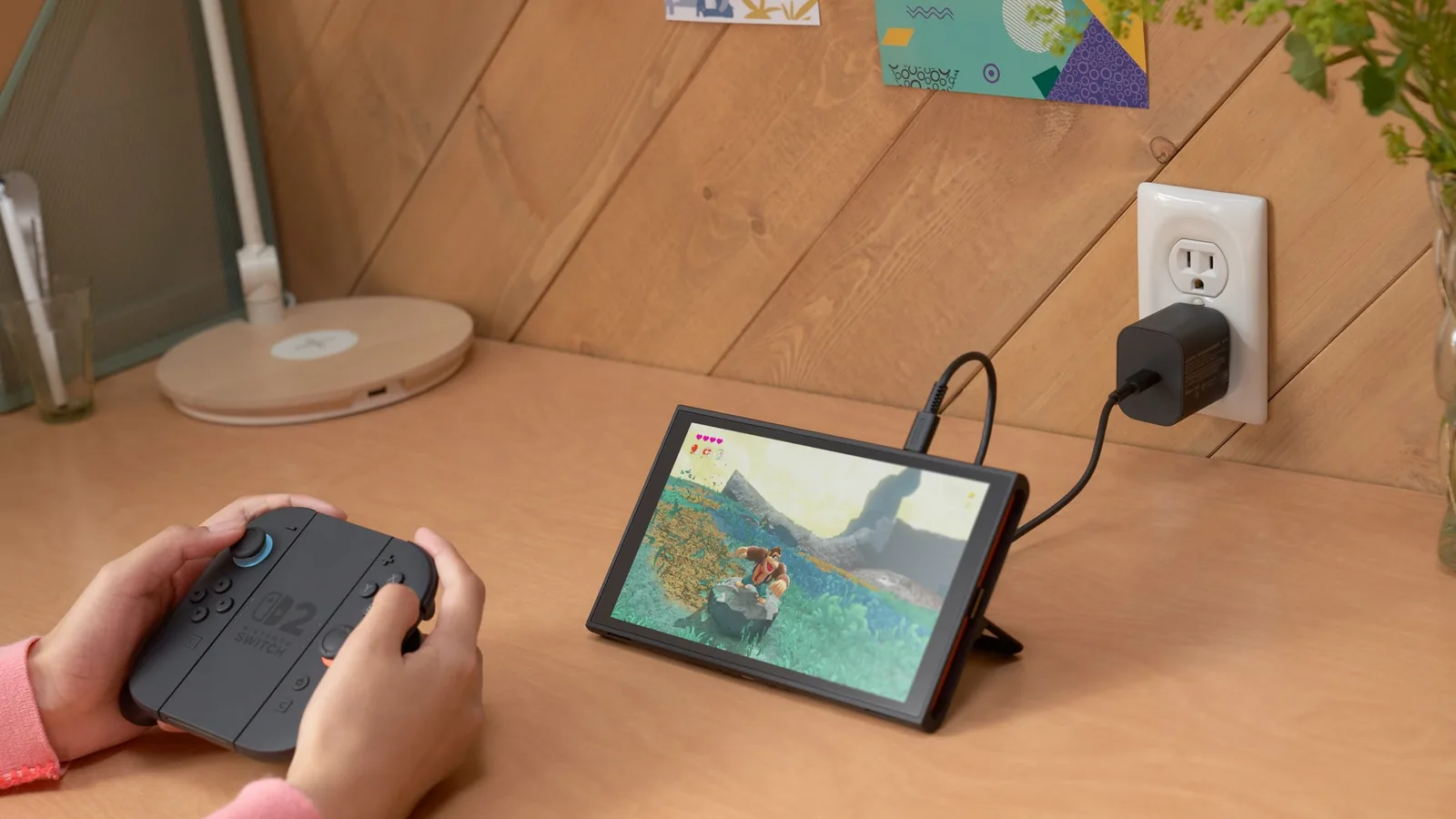
- Plug the adapter directly into the console and the wall socket.
- Press POWER.
If a battery icon appears in the top left, let the console charge for 15 to 30 minutes and try again. If nothing appears, try the other USB-C port on the console and test the adapter on another Nintendo device.
A note on the Switch 1 adapter: it charges the console when plugged in directly, but it will not work with the Switch 2 dock or for TV mode. The Switch 2 AC adapter outputs up to 20 V / 3 A. Ports and the dock are covered in detail in our Switch 2 specs guide.
Switch 2 freezes or won’t power off
- Hold POWER for at least 20 seconds to force the console off.
- Remove the game card and the microSD Express card.
- Turn the console on and update the system.
- If it freezes in TV mode, check that you are using the Switch 2 dock (model BEE-005).
- If the problem continues, initialise the console without deleting save data.
- If that does not help either, contact Nintendo’s repair service.
Recovery Mode: when updating from settings fails
Only use Recovery Mode when the system cannot be updated from settings the normal way.
- Power the console off completely.
- Hold both volume buttons (+ and -) and press POWER once.
- Keep holding the volume buttons until the Recovery Mode menu appears.
- Select
Update Systemand follow the prompts.
The console may ask for your Parental Controls PIN. How it is set and what it does is explained in our parental controls guide. Nintendo has more details on its Recovery Mode support page.
Error codes and what to do
| Code | What it says | What to do |
|---|---|---|
2110-1100 | Unable to connect to the internet: the console found no saved network. | Move closer to the router (3–5 m), restart the console, turn off airplane mode, set up the connection again, restart the router, move metal objects and electronics away, try another network. On a wired connection, check the cable and port. |
2124-8006, 2124-8007 | The Nintendo Account cannot be linked (DNS issue or connection timeout). | Move closer to the router, restart the console, set up the connection again (Nintendo’s steps). |
2137-8007 | A code with official steps on Nintendo Support. | Check Nintendo’s network status, update the system, restart, set up the connection again (Nintendo’s steps). |
2002-2000 to 2002-2499 | Unable to access microSD card. | Update the system, power off and remove the card, check it is a microSD Express card, clean the contacts, check for corrupted data, format the card and download the content again. Otherwise try another card or contact repair. |
2819-0020 | The game was paused because the same Nintendo Account is playing DLC on another console. | Close the game on the other console. To prevent it, load the DLC as a virtual game card instead of an online licence. |
2101-0001 | A code with official steps on Nintendo Support. | Restart, update the system (via Recovery Mode if needed), remove the microSD card (Nintendo’s steps). |
Error 2110-1100 and the internet connection
This error appears when the console cannot find any saved network. Start by moving closer to the router and setting up the connection again, and only then try restarting the router or another network. Nintendo’s official steps are on its error 2110-1100 page. With error 2137-8007, check the network status first to see whether the outage is on Nintendo’s side.
Error 2002 and your microSD card
Switch 2 only uses microSD Express cards for games. It will not use a standard microSD card from Switch 1 for games, which is why checking the card type is one of the first steps. Only insert or remove the card while the console is powered off. The full steps are on the error 2002 page.
Error 2819-0020 and DLC on two consoles
This error is tied to the online licence. A digital game without a virtual game card is checked online when it starts, and the same game cannot be played on several consoles at once. Virtual game cards are explained in our game-key card guide. Nintendo’s description of the error is on its error 2819-0020 page.
Other error codes
Nintendo keeps a list of further Switch 2 codes, including 2005-0003 (downloads), 2002-0001, 2110-3127, 2168-0002, 2811-1006, 2016-4102 (virtual game cards) and 9001-1632 (eShop codes). You will find the steps for those directly in the error code list on Nintendo Support. If the error appeared while moving from Switch 1, also read our system transfer guide.
Join our Discord and ask other players how they fixed the same code: GamersTogether Discord.
FAQ
For a normal restart, 3 seconds, then Power Options and Restart. If the console is not responding, 12 seconds. If it won’t turn on or freezes, Nintendo says to hold POWER for 20 seconds.
Switch 2 has no power indicator light. If a battery icon appears in the top left after you press POWER, let the console charge for 15 to 30 minutes.
Yes, if you plug the adapter directly into the console. It will not work with the Switch 2 dock or in TV mode.
The console cannot access the microSD card. Check that it is a microSD Express card, clean the contacts and format the card if needed. Only insert the card while the console is off.
With the console off, hold volume + and – and press POWER. Keep holding the volume buttons until the menu appears, then select Update System.
Information verified on 20 October 2026. More guides for the new console are in our Nintendo Switch 2 section.