
AION 2’s default settings are made for newcomers, not for players who run the Abyss and dungeons. Here are the options worth changing right after your first login: control mode and targeting, camera, automatic potion use, a cleaner screen in crowds and saving your own interface layout as a code you can send to a friend.
This guide covers the global PC version after the October 14, 2026 patch. Option names are in English, exactly as you see them in the game. Graphics and FPS have their own article: best AION 2 settings.
Quick summary
- Control Mode switches between AION 2 Mode and the classic AION 1 Mode. You can swap on the fly with the minus key.
- Targeting is controlled by Set Main Target upon Attack, Auto Target Upon Skill Use and Pursue Targets with Skill Activation.
- Camera Shake Effect During Combat can be turned off if the shaking bothers you.
- Life Potion is used automatically below 70% HP. You can move the threshold.
- HUD Edit has six slots for interface layouts that you can copy as a code and import elsewhere.
Where the settings are and what each tab holds
The Settings window has eight tabs: Combat, Key Settings, Info Display, Graphics, Accessibility, Audio, Notification and Miscellaneous. For gameplay the first three matter most. Combat holds controls, targeting, camera and auto-use of items, Key Settings holds your keys and Info Display controls what is shown on screen.
Control mode: AION 2 Mode or AION 1 Mode
AION 2 offers two control modes. AION 2 Mode is action-based: you aim with the camera and skills go where you look. AION 1 Mode works like the original AION, where you select a target and skills aim at it on their own. You pick the mode in the Combat tab and swap on the fly with the Switch Control Mode key from Key Settings, which is minus by default.
We break down the difference between the two modes and what it means for each class in our article on the AION 2 combat system.
Targeting that won’t steal your target
The Combat tab has three toggles that decide who your skills hit:
- Set Main Target upon Attack – when you attack someone, the game sets them as your main target.
- Auto Target Upon Skill Use – when you use a skill without a target, the game picks one for you.
- Pursue Targets with Skill Activation – after pressing a skill, your character runs to the target on their own if it’s out of range.
For PvE it’s comfortable to have everything on. In PvP and the Abyss consider turning off Pursue Targets, because a skill can pull you out of formation straight into the enemy. In the Target Scanning section you then set whom the game should prioritise when searching for a target.
Camera and mouse
- Camera Shake Effect During Combat – camera shake on heavy hits. Turn it off if it makes you dizzy in long fights or you simply want a calmer picture.
- Horizontal and Vertical Camera Speed – how fast the camera turns. The default is 50, raise or lower it to match your mouse sensitivity.
- Maximum Camera View Distance – how far the camera zooms out. On Far you see more of the battlefield.
- Invert Y-axis – the option was added in the October 14 patch. Useful if you’re used to inverted camera controls from other games.
Automatic potions and buffs
The Combat tab has an auto-use section. By default the Life Potion is used on its own when your health drops below 70% HP. If you have a healer in your group you can lower the threshold and save potions, when playing solo keep it or raise it. You can toggle auto potions on the fly with the X key.
Buff Auto-Use Conditions decides when your character refreshes item buffs on its own. The default “In Combat or Motion” means buffs are only refreshed in combat or while moving, not while your character stands still.
A cleaner screen in crowds
When a hundred players meet at a world boss or in the Abyss, the screen fills with effects and numbers. These options clean it up:
| Option | Tab | What to set |
|---|---|---|
| Player Particle Effect Display | Graphics | Self and Party, or Self Only |
| Identical Player Appearance | Graphics | on for the Abyss |
| [Abyss] Display as Tier Icon | Graphics | on, you see a rank icon instead of nameplates |
| Other players’ pets | Info Display | off |
| Floating damage numbers (Combat Floater) | Info Display | off or reduced |
| Display Boss Orientation | Info Display | on, you see where the boss is facing |
Since the October 14 patch you can also turn HP bars on or off under Show My Nameplate.
Custom interface layouts and sharing them by code
In HUD Edit you can move and resize every interface element, from action bars to the minimap. You save layouts into six slots, so you can have one for PvE, another for PvP and a third for recording videos. The overall interface size is changed in the Graphics tab with UI Proportion.
- Open HUD Edit and adjust the layout.
- Save it into one of the six slots.
- Use Copy as Code to copy it as text, or Export as file to save it as a.dat file.
- Your friend pastes it via Import Code.
Players also share finished layouts on the GamersTogether Discord in the AION 2 channel. If you have a good one, post it there. And if you want to take AION 2 beyond the game, check out the AION 2 merch in the GamersTogether shop.
Keybinds and macros
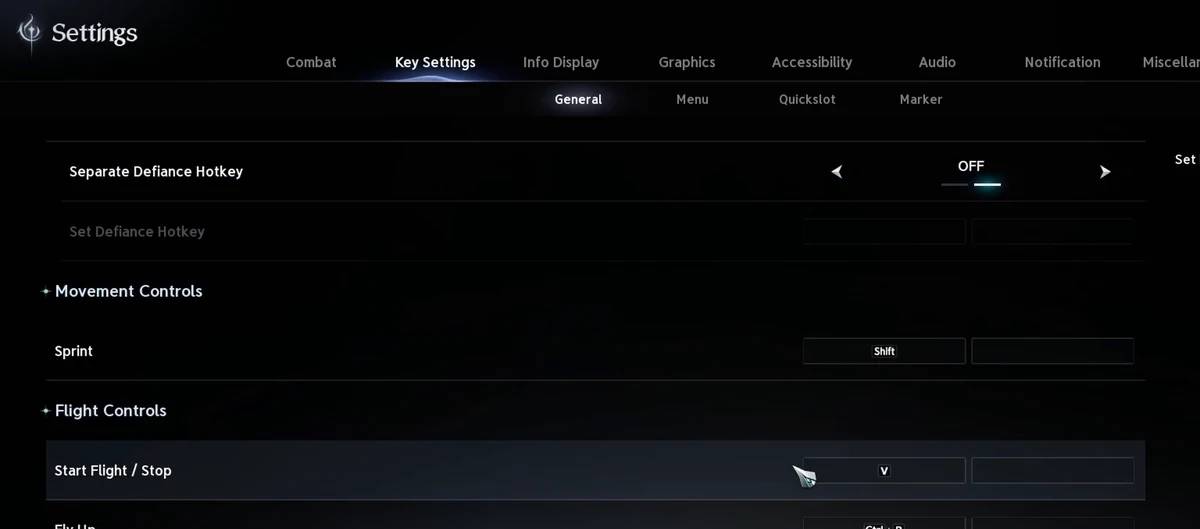
The Key Settings tab is split into General, Menu, Quickslot and Marker. General holds movement (Sprint is on Shift by default), flying (Start Flight / Stop on V, Fly Up on Ctrl + R, Fly Down on Ctrl + F) and switching the control mode. Separate Defiance Hotkey gives Defiance its own key. The Gameplay section then holds Macro, Combat Analysis (Ctrl + X), Interact (F), Activate/Deactivate Power Shard (B) and Activate/Deactivate Auto-use Potions (X).
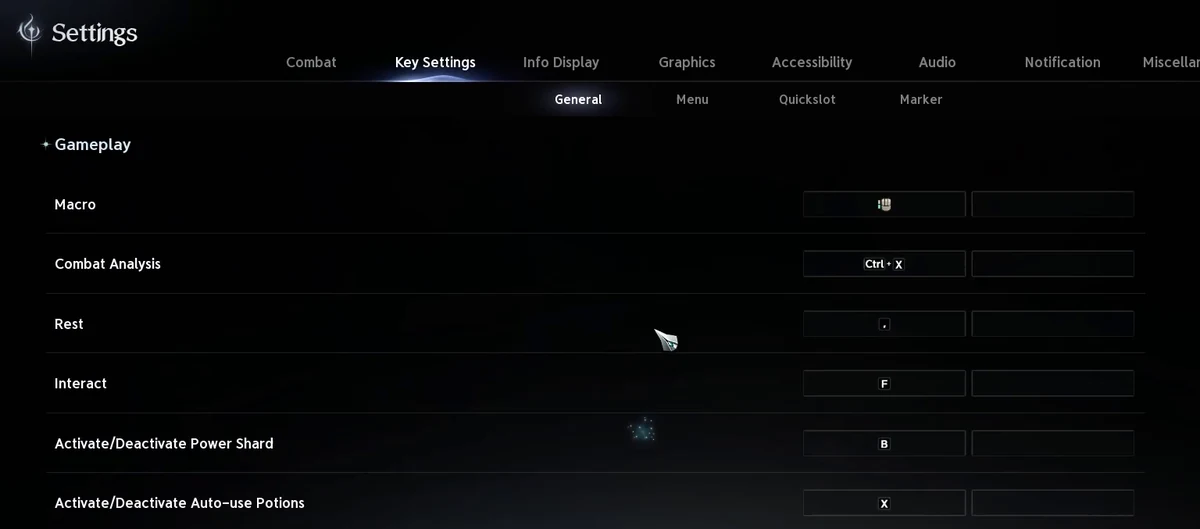
The macro key is not bound by default, you have to assign it yourself. How to do that and how to set the delay and three presets is covered in our guide to macros in AION 2.
Chat and translation
AION 2 can translate chat automatically. Translation is turned on with a single toggle for all channels, so on an international server you see messages in other languages already translated. If the translation confuses you more than it helps, turn it off.
FAQ
Check the control mode (AION 2 Mode or AION 1 Mode), targeting in the Combat tab, camera speed and the auto Life Potion threshold, and in Graphics set Player Particle Effect Display to Self and Party. Finally, save your own interface layout in HUD Edit.
Open HUD Edit and use Import Code to paste a layout code from another player. You share your own layout via Copy as Code, or save it as a.dat file via Export as file. There are six slots.
Turn off Camera Shake Effect During Combat in the settings. In the same section you can adjust horizontal and vertical camera speed, both default to 50.
With the minus key, which is bound to Switch Control Mode by default. It switches between the action-based AION 2 Mode and the classic tab-target AION 1 Mode.
Yes. In the Graphics tab set Player Particle Effect Display to Self and Party or Self Only. In the Abyss, Identical Player Appearance also helps by giving other players a uniform look.
By default below 70% HP. You can change the threshold in the auto-use section of the Combat tab.
Where to go next
Graphics, DLSS and FPS are covered in best AION 2 settings. What to do every week before the reset is in the weekly checklist, and all our guides are in the AION 2 guide hub.
Option names match the English client of the global version. Information verified as of October 31, 2026.