
The biggest FPS gains in AION 2 come from switching to Fullscreen, using DLSS or FSR and lowering Mass Combat Quality. Most other options cost little, but in the Abyss and at world bosses what matters is how many players and effects the game draws at once. Below you will find recommended values for low-end, mid-range and high-end PCs, what DLSS, FSR and the Frame Generator actually do, and what to try when the game stutters or crashes.
This guide covers the global PC version (Steam and PURPLE) after the October 14, 2026 patch. Option names are written exactly as they appear in the English client.
Quick summary
- Set Display Mode to Fullscreen. In Borderless Window, Resolution, Vertical Sync and Screen Refresh Rate are greyed out.
- There is no FPS cap. Keep your FPS at your monitor’s refresh rate or as close to it as you can. If your monitor supports it, turn on Vertical Sync in the game too.
- Upscaler: pick DLSS on GeForce RTX cards and FSR on AMD and GTX cards. The Frame Generator only works with DLSS or FSR and needs an RTX 40 series card or newer.
- Lower Mass Combat Quality and Player Particle Effect Display first when your FPS drops in crowds.
- Ambient Occlusion on NCAO, Water Reflection Method on Performance. You barely see the difference and you save performance.
- On a weak PC keep Texture Quality on Normal and shadows, vegetation and clouds on Very Low.
Where to find the graphics settings
The Settings window has eight tabs: Combat, Key Settings, Info Display, Graphics, Accessibility, Audio, Notification and Miscellaneous. At the top of the Graphics tab are the display options (Display Mode, Resolution, Vertical Sync, Screen Refresh Rate and the interface size, UI Proportion), followed by the preset and 13 individual quality options. Each has five levels: Very Low, Low, Normal, High and Very High.
The 13 options are Texture, Effect, Mass Combat, Model, View Distance, Vegetation, Shadow, Shading, Global Illumination, Reflection, Cloud, Post-Processing and Anti-Aliasing. On top of that come the advanced toggles: Player Particle Effect Display, Volumetric Light Scattering, Volumetric Fog, Ambient Occlusion, Water Reflection Method, Identical Player Appearance and [Abyss] Display as Tier Icon.
Don’t look for Motion Blur, Depth of Field, Bloom or Chromatic Aberration in the global version. Some guides list them, but they were written before launch and the options are not in the global client’s menu.
Recommended settings by PC tier
NCSOFT itself says on Steam that on the minimum spec (GTX 1050 Ti, 8 GB RAM) you should play at Full HD on the Very Low preset, and on the recommended spec (RTX 2070, 16 GB RAM) on Low. That is a cautious estimate, with an upscaler you can go higher. Use the table as a starting point:
| Option | Low-end PC (GTX 1050 Ti to GTX 1660) | Mid-range PC (RTX 2070 to RTX 3070) | High-end PC (RTX 40 and 50) |
|---|---|---|---|
| Display Mode | Fullscreen | Fullscreen | Fullscreen |
| Upscaler | FSR | DLSS | DLSS |
| Frame Generator | not available | not available | on |
| Texture Quality | Normal | High | Very High |
| Mass Combat Quality | Very Low | Low | Normal |
| Shadow, Vegetation, Cloud | Very Low | Low to Normal | High |
| Effect, Shading, Post-Processing | Low | Normal | High |
| View Distance | Low | Normal | High |
| Volumetric Fog and Light Scattering | Off | Off | On |
| Ambient Occlusion | NCAO | NCAO | NCAO or GTAO |
| Water Reflection Method | Performance | Performance | Quality |
| Player Particle Effect Display | Self Only | Self and Party | Self and Party |
Set Texture Quality by your graphics memory, not by GPU speed. With 4 to 6 GB of VRAM don’t go above Normal, otherwise textures keep streaming in and the game hitches. GTAO looks slightly better than NCAO but costs more performance.
DLSS, FSR and the Frame Generator
The Upscaler option offers TAA, TSR, DLSS and FSR. TAA and TSR only smooth edges, while DLSS and FSR render the game at a lower resolution and upscale it to yours, so they give the most FPS. How much depends on Resolution Scale: Quality looks best, Balanced and Performance add more frames.
- DLSS only works on GeForce RTX cards. On September 22, 2026 NVIDIA confirmed that the global version supports DLSS 4.5 Super Resolution and Multi Frame Generation.
- FSR is AMD’s technology and runs on AMD cards as well as older GeForce GTX cards. The October 14 patch fixed the longer loading times FSR used to cause.
- Frame Generator inserts generated frames between rendered ones. It only works with the DLSS or FSR upscaler (it is greyed out with TSR) and needs an RTX 40 series card or newer. Multi Frame Generation is RTX 50 only.
- NVIDIA Reflex reduces the delay between your input and the screen. It can only be turned on together with the Frame Generator, otherwise it is greyed out. For more stable FPS we recommend leaving it off.
The Frame Generator makes the picture smoother but doesn’t make the game respond faster. Test it in PvP and arenas, and if the game feels floaty, turn it off and keep just DLSS.
Fullscreen or Borderless Window
In Borderless Window you can’t change the resolution, Vertical Sync or Screen Refresh Rate, the game takes them from Windows. So if your refresh rate is greyed out or you can’t select 144 Hz, switch Display Mode to Fullscreen and the options unlock. Borderless is only worth it if you alt-tab a lot, for example to Discord.
FPS cap and Vertical Sync
You won’t find an FPS limit in the AION 2 menu, the game draws as many frames as your PC can handle. Ideally your FPS should sit at your monitor’s refresh rate or just below it, so around 144 FPS on a 144 Hz monitor. If your monitor supports it, turn on Vertical Sync in the game as well. It can only be changed in Fullscreen, which is why switching away from Borderless Window comes first.
AION 2 has no built-in FPS counter. If you play on Steam, turn one on in Steam settings under In Game with the In-game FPS counter option.
With the October 14 patch NCSOFT fixed crashes at certain refresh rates on 4K monitors and incorrect graphics settings on PCs with two graphics cards (typically laptops with integrated and dedicated graphics).
Settings for the Abyss, world bosses and large battles
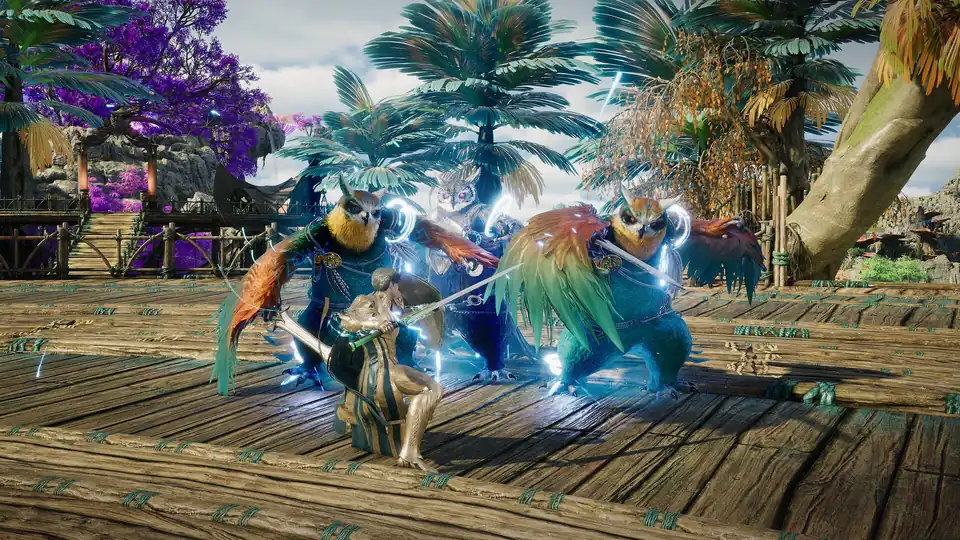
In a crowd it’s not the scenery that costs FPS, it’s how many characters and spells the game draws. Before a big fight, change these three options:
- Mass Combat Quality to Low or Very Low. It controls how detailed other players are in large battles.
- Player Particle Effect Display from Everyone to Self and Party, or Self Only. Other players’ spell effects disappear and you can also see better what’s happening under the boss.
- Identical Player Appearance on. Other players get a uniform look and the game has less work in crowds. It works on maps where the game allows it, mainly in the Abyss.
[Abyss] Display as Tier Icon shows players in the Abyss with their rank icon instead of a nameplate, which keeps the screen cleaner in battle. The October 14 patch also directly reduced stuttering in large Abyss battles, so if lag during sieges put you off, give it another try.
When the game stutters, crashes or lags
First figure out whether it’s FPS (the picture stutters but the game responds) or ping (your character rubber-bands, skills fire late). Everything above helps with FPS, graphics have no effect on ping.
- FPS drops in crowds: Mass Combat Quality and Player Particle Effect Display, see the previous section.
- Settings keep changing: since the October 14 patch graphics settings are no longer saved to Steam Cloud. If you play on two PCs, set each one up separately.
- Crashes: update your graphics driver, verify the game files (on Steam: Properties → Installed Files → Verify integrity of game files) and turn off overlays that draw over the game, such as MSI Afterburner or RivaTuner.
- High ping and lag: play on a cable instead of Wi-Fi and check that you’re on a server in your region. How to shorten the route to the server is covered in our LagoFast guide for AION 2.
If nothing helps, ask on the GamersTogether Discord. In the AION 2 channel we talk settings and performance, and players with the same GPU can help you. And if you want to take AION 2 beyond the game, check out the AION 2 merch in the GamersTogether shop.
FAQ
Display Mode Fullscreen, DLSS (on RTX) or FSR (on AMD and GTX) with Resolution Scale Balanced, Mass Combat Quality Low, Player Particle Effect Display Self and Party, Ambient Occlusion NCAO and Water Reflection Method Performance. Set the rest according to your graphics card.
Because Display Mode is set to Borderless Window. In that mode the game takes the resolution, Vertical Sync and refresh rate from Windows. Switch to Fullscreen and the options unlock.
No, there is no FPS limit in the menu. We recommend keeping your FPS at your monitor’s refresh rate or as close to it as possible and, if your monitor supports it, turning on Vertical Sync in the game. It can only be set in Fullscreen mode.
The game has no FPS counter of its own. On Steam you can turn one on in Steam settings under In Game with the In-game FPS counter option.
In AION 2, Reflex can only be turned on together with the Frame Generator. For more stable FPS we recommend leaving it off.
Yes. The Upscaler offers TAA, TSR, DLSS and FSR. According to NVIDIA the global version supports DLSS 4.5 Super Resolution and Multi Frame Generation. DLSS only runs on GeForce RTX, FSR also on AMD and GeForce GTX cards.
The Frame Generator only works with the DLSS or FSR upscaler and requires an RTX 40 series graphics card or newer. With the TSR upscaler or on an older card the option is greyed out.
Lower Mass Combat Quality to Low or Very Low, set Player Particle Effect Display to Self Only or Self and Party and turn on Identical Player Appearance. These three options control how many players and effects the game draws in a crowd.
The official minimum is a 4 GB GTX 1050 Ti, 8 GB of RAM and a Ryzen 5 2600 or i5-10500. NCSOFT recommends the Very Low preset at Full HD on it. FSR, Texture Quality on Normal and turning off the volumetric effects help.
Where to go next
Graphics are only half of the settings. What else to change in controls, camera and interface is covered in AION 2 settings to change: controls, camera and UI. Whether your PC can run the game at all is in the system requirements, and all our guides are in the AION 2 guide hub.
Option names match the English client of the global version. Information verified as of October 31, 2026.