

Lag in AION 2 usually starts at home, not on the server: Wi-Fi, a full upload while streaming or downloading, a power-saving mode on your network card or a booster on the wrong node. Your internet speed barely matters. What matters is whether your ping stays stable. This guide shows how to turn on the in-game network indicator, how to find the source of lag in Windows in a few minutes and what to fix next.
The guide covers the global PC version (Steam and PURPLE). We tested every step on our own PC, the one we play and stream AION 2 from.
Quick summary
- First tell lag from low FPS. Lag means your character snaps back and skills fire late. Low FPS means the whole picture stutters. Graphics settings don’t affect lag.
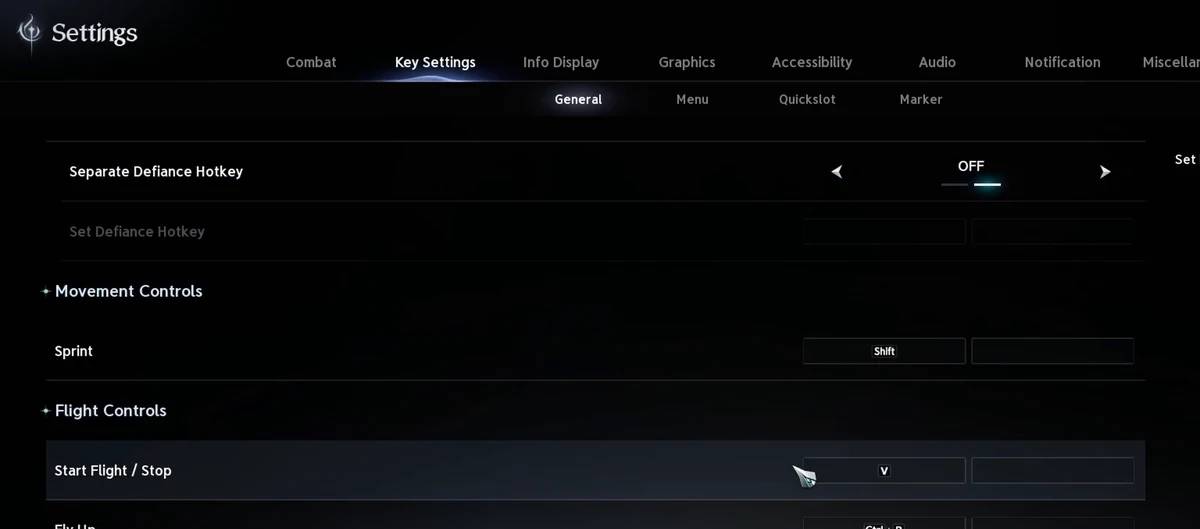
- Turn on the network indicator: Settings → Info Display → General → Display Network Status.
- Play on a cable. Wi-Fi is the most common cause of random lag spikes.
- Streaming or downloading? A full upload causes ping spikes even on fast internet. Lower your stream bitrate and pause downloads.
- Turn off power saving on your network card (Green Ethernet, Energy-Efficient Ethernet) and restart your router.
- If everyone lags at once, the problem is on the server and you can’t fix it at home.
Lag or low FPS?
Players call both “stuttering”, but the fixes are completely different:
- Lag (high ping): the picture is smooth, but your character rubber-bands, mobs teleport and skills fire late or not at all. The cause is your connection.
- Low FPS: the whole picture stutters and the camera jerks, mostly in crowds in the Abyss or at world bosses. The cause is PC performance, and the best graphics settings for more FPS will help.
Not sure which one you have? Turn on the network indicator from the next section. If it shows a good state while the game stutters, fix your graphics. If it turns yellow or red, keep reading.
How to show ping in AION 2
The game has its own network status indicator. Open Settings, switch to the Info Display tab and under General turn on Display Network Status. A colored connection quality indicator appears on screen. It doesn’t show a number in milliseconds, it’s just a color-coded traffic light.
For your exact ping, use Windows. Open Resource Monitor (Win+R, type resmon), go to the Network tab, expand TCP Connections and find AION2.exe. The Latency (ms) column is your ping to the server.
Careful: if you play through a gaming booster (LagoFast, ExitLag and similar), AION2.exe only shows a connection to 127.0.0.1. The game is talking to the booster on your own PC, and only the booster app shows your real ping to the server. We saw exactly this on our own machine.
How to find where the lag comes from
In five minutes you can tell whether the problem is your PC, your home network, your internet provider or the server. Open Command Prompt (Win+R, cmd) and keep the game running, ideally while it lags.
Test 1: ping your router
Type ping 192.168.0.1 -n 50. You’ll find your router address with ipconfig on the Default Gateway line. On a cable you should see 1 to 2 ms with no swings and no lost packets. Tens of milliseconds or packet loss here mean the problem sits between your PC and the router: Wi-Fi, cable, network card or the router itself.
Test 2: ping the internet
Type ping 1.1.1.1 -n 50. Watch the gap between minimum and maximum. A low minimum with occasional jumps to 80 ms or more means a congested line, most often a full upload. A constantly high value with no swings points to your provider or a distant server.
Test 3: route and packet loss
pathping 1.1.1.1 runs for about five minutes and lists packet loss for every hop on the way. Loss that starts at one hop and continues all the way to the target shows where the problem is. If it starts right after your router, call your internet provider and send them the output.
| What you see | Where the problem is | What to do |
|---|---|---|
| Router ping above 5 ms or packet loss | Home network | Cable instead of Wi-Fi, network card power saving, router restart |
| Router fine, internet jumps to 80+ ms | Congested line | Stream, downloads, cloud backups, router QoS |
| Loss from a hop after the router onwards | Internet provider | Report to your provider, try a booster |
| Everything fine, lag in game | Server or the route to it | Check for outages, server region, booster |
Common causes of lag and how to fix them
Wi-Fi instead of a cable
Wi-Fi can show a great average ping and still jump to hundreds of milliseconds every few minutes when a neighbor’s network, a microwave or a phone gets in the way. For an MMO, a cable is the cheapest and most effective fix. If you can’t run one, use the 5 GHz band and keep your PC as close to the router as you can.
Streaming, downloads and a full upload
This is the most common and least known cause. When an OBS stream, a cloud backup or Steam fills your upload, game packets wait in line behind the video and your ping jumps, even on fast internet. It’s called bufferbloat. You can check it for free with the Waveform bufferbloat test: a grade of C or worse means you have it.
- Streaming: in OBS (Settings → Output → Streaming) set a bitrate that uses no more than about half of your upload. On cable and older DSL lines that often means 3,500 to 4,500 kbps instead of 6,000.
- Downloads: pause downloads in Steam and the PURPLE launcher, OneDrive or Google Drive sync and torrents.
- Windows Update: in Settings → Windows Update → Advanced options → Delivery Optimization, turn off downloads from other PCs.
Network card power saving
Realtek and Intel network cards have features that save power and put the card to sleep when traffic is low. In a game that sends small but frequent packets, this can cause micro-freezes. Open Device Manager → Network adapters → your card → Advanced and set Green Ethernet, Energy-Efficient Ethernet and, if present, Gigabit Lite to Disabled. Your connection drops for a few seconds while the change applies.
Router: restart and QoS
A router that has run for months without a restart can slow down. Switch it off for 30 seconds and back on. If your router supports QoS or device priority (often called Gaming Mode or Device Priority), give your PC the highest priority. Not every router has it, though. If yours doesn’t and you stream, a lower stream bitrate is the most reliable fix.
A server outside your region
If you play from Europe on a North American or Asian server, nothing at home will fix the higher ping. You can move your character to a server in your region. The conditions and dates are in our AION 2 server transfer guide.
Gaming booster
A booster sends your data to the server on its own route. It helps when your internet provider takes a detour to the server or runs through a congested hop. It won’t help with Wi-Fi or a full upload. If you use one, pick the node with the lowest ping and compare your ping with and without the booster. The step-by-step setup is in our LagoFast guide for AION 2.
Disconnects and packet loss
The Disconnected from game server message or an unstable connection during play almost always means packet loss, not high ping. The server drops you when it doesn’t hear from you for a while. The steps are the same as above, just focus on lost packets in tests 1 and 3.
If you only get kicked at login, or everyone gets kicked at the same moment, the problem is on the server side. Check whether there’s maintenance or an outage, and look at our Discord, where players report it first.
From our own PC: how we fixed lag
This guide comes from our own experience. On our gaming PC, AION 2 started lagging during a stream. The PC was on a cable (1 Gbps), the game ran through LagoFast and OBS was streaming at a bitrate of 6,000 kbps. The measurements showed:
- router ping of 1 ms with no swings, so the home network was fine,
- ping to the internet and to the booster nodes averaging 14 to 23 ms, but with spikes up to 88 ms,
- the stream using 6.4 Mbps of upload,
- Green Ethernet and Gigabit Lite turned on in the Realtek network card.
After turning off both power-saving modes, the lag was gone. The upload spikes from the stream may have played a part too, so we noted the stream bitrate as the next step in case the lag comes back. The lesson: average ping lies, watch the maximum.
If none of this helps, post your test results on the GamersTogether Discord in the AION 2 channel and we’ll look at it with you. And if you want AION 2 outside the game too, check out the AION 2 merch in the GamersTogether shop.
FAQ
In Settings, go to the Info Display tab and under General turn on Display Network Status. The game then shows a colored connection quality indicator. For your exact ping in milliseconds, open Resource Monitor (resmon) in Windows and check AION2.exe on the Network tab.
Because games care about ping stability, not speed. Wi-Fi, a full upload while streaming or downloading and network card power saving are the usual causes. A fast line with a full upload lags more than a slow line with free capacity.
Up to about 50 ms you play without limits. Around 100 ms you start to feel skill delay, and in Abyss PvP it shows. Swings hurt more than the average, though: a stable 60 ms beats 20 ms with spikes to 150 ms.
Not lag, graphics don’t affect ping. Lower settings only help with low FPS, when the picture stutters. If your character teleports or skills fire late, fix your connection.
A booster helps when your internet provider takes a detour to the server. It won’t help with Wi-Fi, a full upload or a weak router. A regular VPN usually raises your ping because it adds another stop on the way.
The server didn’t receive data from you for a while and closed the connection. Packet loss on Wi-Fi or at your provider is the most common cause. If it happens to everyone at once, it’s a server outage or maintenance.
Often it isn’t lag but an FPS drop, because the game draws hundreds of players and effects. Turn on Display Network Status: if it shows a good state, lower Mass Combat Quality and Player Particle Effect Display. If it shows a bad state for everyone around you, the server is overloaded.
What’s next
If it turns out the problem isn’t your connection but performance, continue with the best graphics settings for more FPS. All our guides to the game are in the AION 2 guide hub.
Information verified as of November 14, 2026.