
Your home Xbox is the console where anyone who signs in can use your digital games and your Game Pass subscription, even when you’re not signed in yourself. It’s also the one console where you can play your digital games offline. This guide covers how to set your home Xbox, how often you can change it, what is and isn’t shared with your family, and why Game Pass sharing doesn’t work on PC. Correct as of 20 October 2026, based on Microsoft’s support pages.
How a home Xbox works
The first time you install a digital game on your home Xbox, the console fetches a licence from the Xbox network. That licence is tied to your home Xbox and doesn’t expire unless you change your home Xbox. That’s why your games start whether you’re online or offline, for example during a network outage.
Friends and family who sign in to your home Xbox with their own Xbox profile get access to the same games. A sibling or your kid can play your games even when you’re not around.
A few rules Microsoft spells out:
- When you add your account to a new console and don’t choose Lock it down during setup, Microsoft automatically makes that console your home Xbox.
- You can only have one home Xbox at a time. If you sign in on several consoles, pick the one you use most.
- If you’ve moved from Xbox One to Xbox Series X|S, make the new console your home Xbox.
- Microsoft never changes your home Xbox for you, but if you reset the console and remove everything, you have to set it again.
How to set or change your home Xbox
Do this on the console you want as your home Xbox, signed in with your own profile:
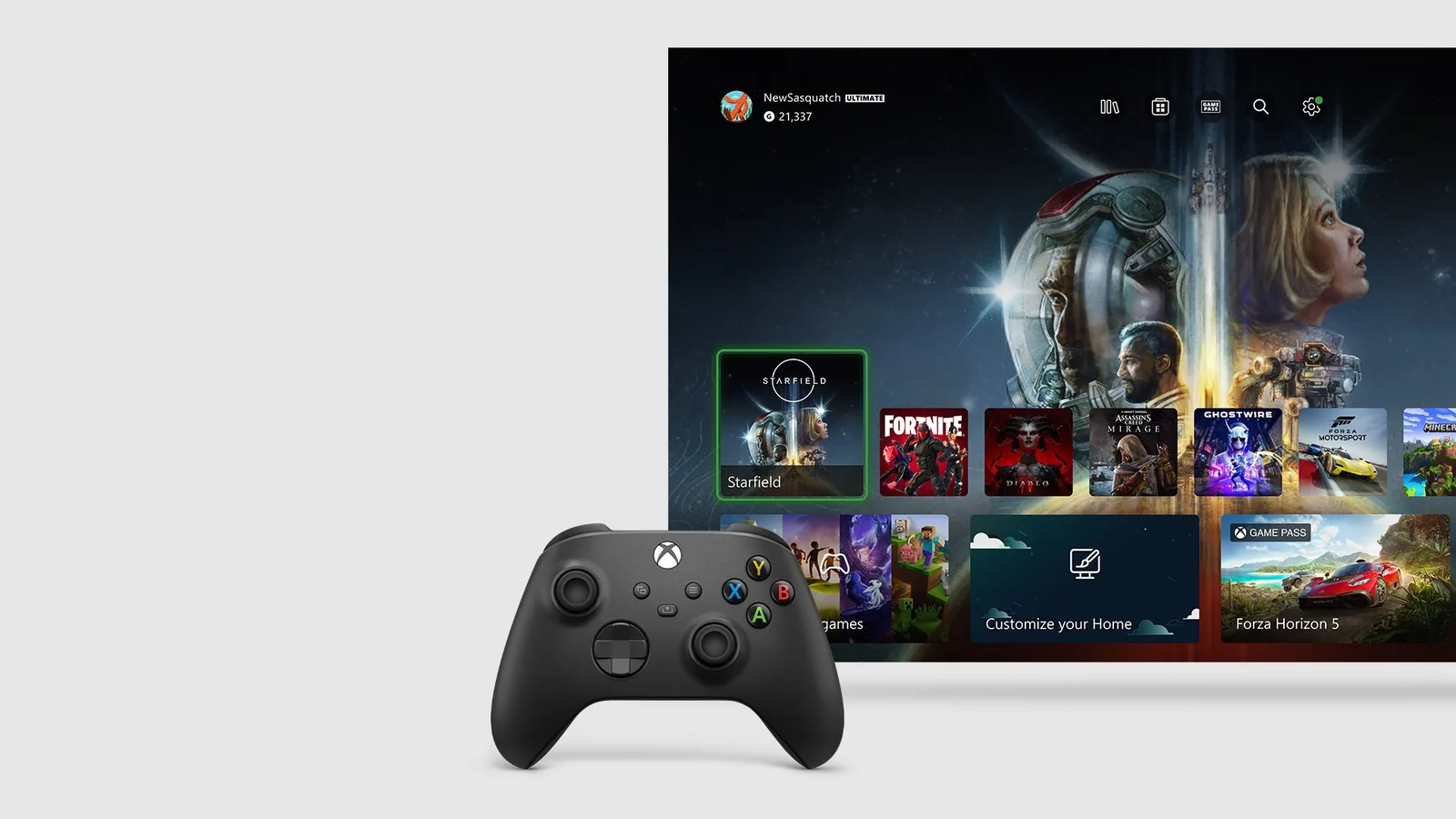
- Press the Xbox button on your controller to open the guide.
- Go to Profile & system > Settings > General > Personalization.
- Select My home XBOX.
- Choose Make this my home XBOX.
If you no longer want this console as your home Xbox, select Make this my home XBOX in the same menu and then Remove this as my home XBOX. Microsoft’s own instructions are on the Xbox support page.
The five-changes-a-year limit and what happens after a switch
You can switch your home Xbox up to five times in any one-year period, and customer support can’t give you extra switches. Once you hit the limit, the My home XBOX screen shows the next date you can change it. So don’t waste switches.
After a switch, people on your old console lose access to your shared licences. Your games will only work there when you’re signed in online on that console. Offline play also moves to the new console, and the licence registers there as soon as you redownload or launch a game on it.
What is and isn’t shared
| Item | Shared on your home Xbox? |
|---|---|
| Games and downloadable content (DLC) from the Microsoft Store | Yes, with everyone who signs in |
| Games from your Game Pass subscription | Yes, with everyone who signs in |
| Content bought with in-game currency, such as Minecraft Skin Mashups or Halo REQ Packs | Not always |
| In-game currency, such as Minecraft Coins | Not always |
| Certain pre-order bonuses and special edition content that can only be redeemed once | Not always |
Playing at a friend’s place or on a second console
You don’t need to switch your home Xbox to play somewhere else. On any other Xbox you can play your digital games as long as you’re signed in and connected to the Xbox network. Disc games work anywhere once you insert the disc.
A game you leave installed on someone else’s console won’t run there without you. The other player needs the disc or their own digital copy. If several people want to play the same game at the same time on different consoles, each console needs its own copy.
Game Pass on your home Xbox and on PC
On your home Xbox, you share your Game Pass subscription with every profile that signs in to that console, even when you’re not signed in. This works for Ultimate, Premium and Essential. On another Xbox, such as a friend’s, you share Game Pass with everyone only while you’re signed in there. Microsoft describes both cases on its Game Pass sharing page. The differences between plans are covered in our overview of Game Pass tiers.
Windows PCs work differently. There, Game Pass is tied to an individual Microsoft account, so everyone who wants to play on their own PC needs their own subscription.
Your child lost access to Game Pass
According to Microsoft, the most likely cause is a change of home Xbox. Game Pass is only shared on the console the subscription holder has set as their home Xbox. To restore access:
- On the console your child uses, sign in with the account that holds the Game Pass subscription.
- Go to Settings > General > Personalization > My home XBOX.
- Select Make this my home XBOX.
If your child plays on a Windows PC, sharing won’t help and they need their own subscription. Other settings for child accounts are covered in our guide to parental controls.
Saves, screenshots and error messages
While you’re connected to the Xbox network, your saves go to the cloud automatically, even without a subscription. Sign in on another console and they’re there. Downloaded content and add-ons aren’t stored in the cloud; they have to be on the console itself. More details are in Microsoft’s cloud saves FAQ.
Saving and sharing screenshots on console requires Game Pass. Without it, you can do it on another home Xbox where someone with Game Pass is signed in. More on that in our guide to Xbox capture.
If a game shows “The person who bought this needs to sign in” with code 0x803F9006 or 0x87DE2729, setting the right home Xbox usually fixes it. Other codes are in our list of Xbox error codes.
Join our Discord and ask other players how they’ve set up game sharing at home: Discord GamersTogether.
FAQ
Up to five times in any one-year period. Microsoft support can’t add more. Once you reach the limit, the console shows the next date you can switch.
Most likely the home Xbox changed. Sign in with the subscription holder’s account on your child’s console and choose Make this my home XBOX under Settings > General > Personalization > My home XBOX.
Yes, without changing your home Xbox. Just sign in on their Xbox and stay online. Once you leave, your games won’t work there without you.
Information verified on 20 October 2026. More console and Game Pass guides are in our Xbox section.