
You can set up Roblox parental controls in two ways: link your own Roblox account to your child’s account, or use Parent mode directly on their device. This guide walks you through both, explains what Roblox Kids and Roblox Select accounts allow, and shows how to limit chat, spending and screen time and what changes when your child turns 13, 16 and 18. Everything is based on Roblox’s official support pages as of 19 October 2026.
What Roblox parental controls cover
Parental controls on Roblox cover content (which games your child can play), chat, spending, screen time, and friends and privacy.
Everything lives in one place: Settings > Parental controls, where you pick your child and open Settings you manage. On a computer, Settings sits under the gear icon in the top right; on mobile, go through More in the bottom right.
Two options: a linked account or Parent mode
Linking your own parent account
This option gives you the most control. You can manage settings any time from your own device and you get emails about your child’s activity. You need your own Roblox account and must be verified as 18 or older.
- On your child’s account, open Settings > Parental controls > Add parent.
- Enter your date of birth.
- Verify your age with facial age estimation, an ID document or a credit card.
- Link your account to your child’s account.
More than one parent can link to the same child, each from their own account. Roblox no longer uses the old Parent PIN; accounts with parental privileges replaced it.
Parent mode on your child’s device
If you’d rather not create an account, you can approve settings right on your child’s device. Your child picks Ask in Person, and then you:
- Confirm you are an adult with camera-based age estimation, a payment card (only a temporary hold, nothing is charged) or an ID plus a selfie.
- Check your child’s date of birth.
- Create a 6-digit PIN for approving future changes.
Roblox is rolling out Parent mode gradually, so it may not be available to you yet. In this mode you can’t use settings that send real-time notifications, such as spending alerts.
Roblox Kids, Roblox Select and age checks
Roblox sorts accounts by age, as its help article explains. The age bands may vary by region.
| Account | Age | Games | Chat |
|---|---|---|---|
| Roblox Kids | 5–8 | Minimal or Mild only | off by default |
| Roblox Select | 9–15 | Minimal, Mild and Moderate | gradually, with safeguards for age-checked users |
| Roblox | 16+ | everything except Restricted (18+), including Content May Vary | after an age check |
Until your child completes an age check, Roblox goes by the birth date entered at sign-up: under 9 means Roblox Kids, 9 or older means Roblox Select, and chat is off in both cases. An age check is needed for chat, games outside the Kids and Select catalogues, and 16+ and 18+ content, among other things.
Age is checked by facial age estimation through the camera (images and video are deleted after processing) or by an ID document, which is only available from age 13. In some regions, facial age estimation requires parental consent.
Game content and maturity labels
Every game on Roblox (older help articles call them experiences) has a content maturity label. In Settings you manage you set the Content maturity slider to one of these levels:
- Minimal: occasional mild violence, light unrealistic blood, mild fear.
- Mild: repeated mild violence, heavier unrealistic blood, mild crude humour.
- Moderate: moderate violence, light realistic blood, gambling without real money, social hangouts without private spaces.
- Restricted: strong violence, alcohol, romantic themes, strong language. Verified 18+ only.
Games labelled Content May Vary have an incomplete questionnaire from the creator and are for verified 16+ users only. You can block a specific game under Blocked games (it still shows up in search) and allow a game above the chosen level under Allowed games. If you block a game your child is playing, the block applies from their next visit. Games mainly about sensitive social, political or religious topics are for verified 16+ users; you can allow them under Sensitive issues. To see how today’s top games are rated, check our list of the most played games.
For comparison, store ratings: the Czech App Store lists Roblox as 13+, Google Play in Czechia shows the label “Dohled rodičů” (parental guidance), Roblox on PlayStation carries the US ESRB rating “T for Teen” (13+), and on Meta Quest it’s for users aged 10 and up. Roblox is moving to the IARC system with regional ratings.
Chat, friends and privacy
- Experience chat: in-game chat with trusted friends and people of a similar age. Children under 9 need your consent.
- Direct chat: direct messages, including with similar-aged players who aren’t friends but play the same game. Children under 13 need your consent.
- Chat and party with friends: turn Party on or off, and set Friends chat to All friends, Trusted friends or No one. The first two require an age check.
- Quick Words: short preset phrases for coordinating play with players of all ages. You can turn them off.
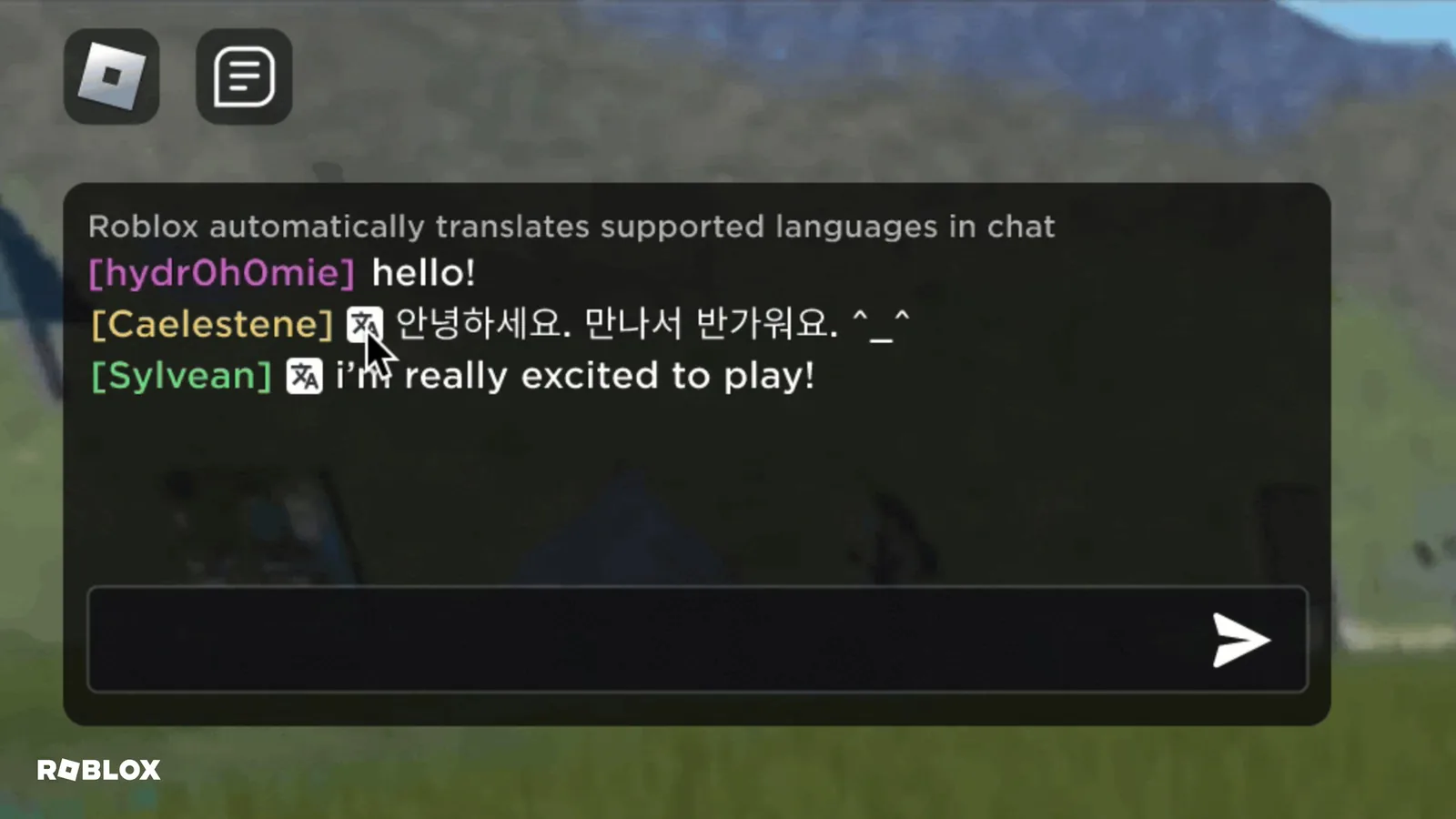
Chat is filtered by default: it blocks inappropriate content, personal information and attempts to move the conversation off Roblox. Unfiltered chat is only possible with trusted friends, and a child under 13 needs your consent to add one. These settings don’t cover chat systems a creator builds into their own game.
You can also decide who sees that your child is online and what they’re playing (Friends, Trusted friends, No one), and who can join them on private servers. Blocking users and reporting rule breaks (Report Abuse) works from anywhere in the app and in games.
Spending and Robux
To set a monthly spending limit:
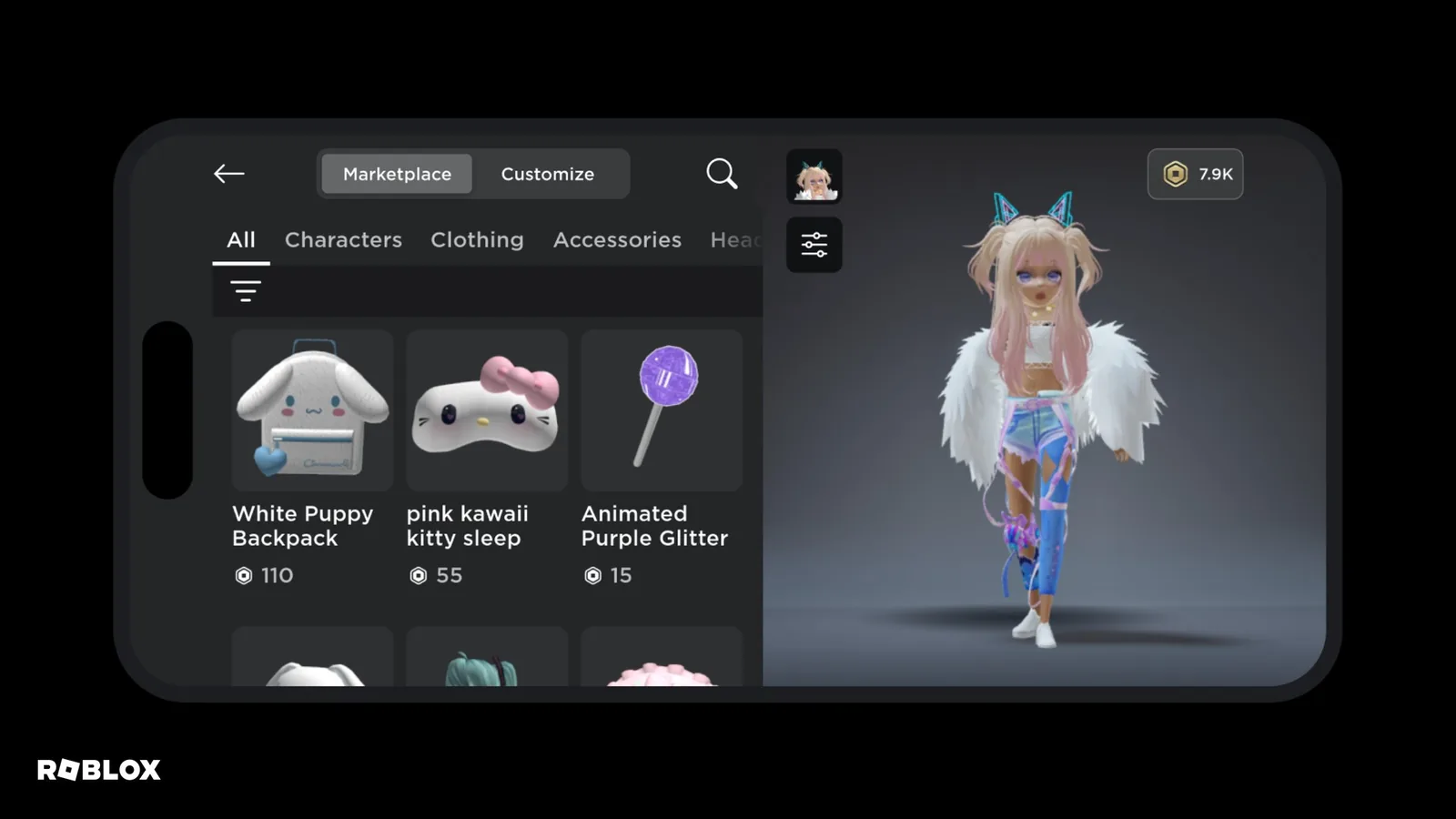
- Open Settings > Parental controls and select your child.
- Go to Settings you manage > Spending restrictions.
- Under Monthly spending limit, enter an amount from 0 to 10,000 in your local currency. The default is No limit.
The limit resets at the end of each calendar month and unused amounts don’t carry over. It doesn’t affect redeeming gift cards and may not apply on some consoles, so on Xbox and PlayStation set a limit on the console as well.
Spending notifications can be set to All transactions, High spend alerts or None. High spend alerts sends an email when monthly spending reaches 100, 250 and 500 USD (or the equivalent), then after every ten transactions. Notifications require a linked parent account.
You can also see your child’s Robux balance and top it up via Robux > Add Robux. Package prices are covered in our Robux prices guide. Your child’s Robux transfers default to 500 a day and 1,000 a month. You can set lower limits, approve every transfer (Always ask) or allow transfers to trusted friends without approval. Free Robux don’t exist; every such offer is a scam, as our Roblox codes guide explains.
Screen time
The daily limit can be No limit or set in 15-minute steps. Once it runs out, your child can’t use Roblox for the rest of the day. You’ll see a chart of the last 7 days and your child’s top 20 games of the week, each with its maturity label and playtime. You can also turn on a weekly Activity updates email.
What changes at 13, 16 and 18
- From 13, the spending limit stops applying (you can still get spending notifications) and your child manages their own screen time limit and user blocking. You can still see screen time, top games, friends and Robux balance, allow and block games, and manage Direct chat.
- From 16, after an age check, your child can access Content May Vary games and 16+ content. You still see friends, screen time and spending.
- At 18, the account automatically unlinks from the parent.
To unlink manually, open Settings > Parental controls, tap the pencil icon next to your child and choose Unlink accounts. After that you no longer manage any of the above. How to deactivate or delete a child’s account is covered in our Roblox account guide.
Join our Discord, Discord GamersTogether, to ask other parents and players how they’ve set up Roblox.
FAQ
Accounts start with Roblox Kids for children aged 5. The Czech App Store rates the app 13+, Google Play in Czechia recommends parental guidance and on Meta Quest Roblox is for ages 10 and up. What your child sees depends on their age and your content settings.
No. Parent mode works on your child’s device without an account of your own, but it is rolling out gradually and can’t send real-time alerts. A linked account lets you manage everything from anywhere and get activity emails.
In Settings you manage, set Friends chat to No one, turn off Party and Quick Words, and don’t give consent for Experience chat or Direct chat. Children without an age check have chat turned off by default.
Not always. On some consoles the Roblox limit doesn’t apply, so set a spending limit in the Xbox or PlayStation settings too.
The monthly spending limit stops applying and your child manages their own screen time limit and user blocking. You can still see playtime, games, friends and Robux, and allow or block games.
Information verified on 19 October 2026. More guides are waiting in the Roblox hub.