
A PS5 error code looks like a random string of letters and numbers, such as CE-108255-1 or WS-116331-5, but Sony publishes a dedicated help page for many of them. Below are 23 codes that Sony has an official fix for, grouped by where the problem sits: discs and games, updates, storage, downloads, network and your account. Each one comes with the exact message the console shows and what Sony tells you to do. Accurate as of 20 October 2026.
How to read a code and find one that isn’t listed here
Every code starts with a prefix (CE, NW, WS, NP, WV, SU or E2). Most codes continue with six digits, a hyphen and a final digit, while E2 codes have eight characters after the hyphen, such as E2-8223B400. Write it down exactly, hyphens included, because codes that differ by a single digit can mean something completely different.
Sony keeps a list of the most common codes on its PS5 error codes page, with a search box at the top. If your code is not in the tables below, type it in there. We deliberately leave out forum guesses about what a code “might mean”.
Discs and games
| Code | What the console says | What Sony tells you to do |
|---|---|---|
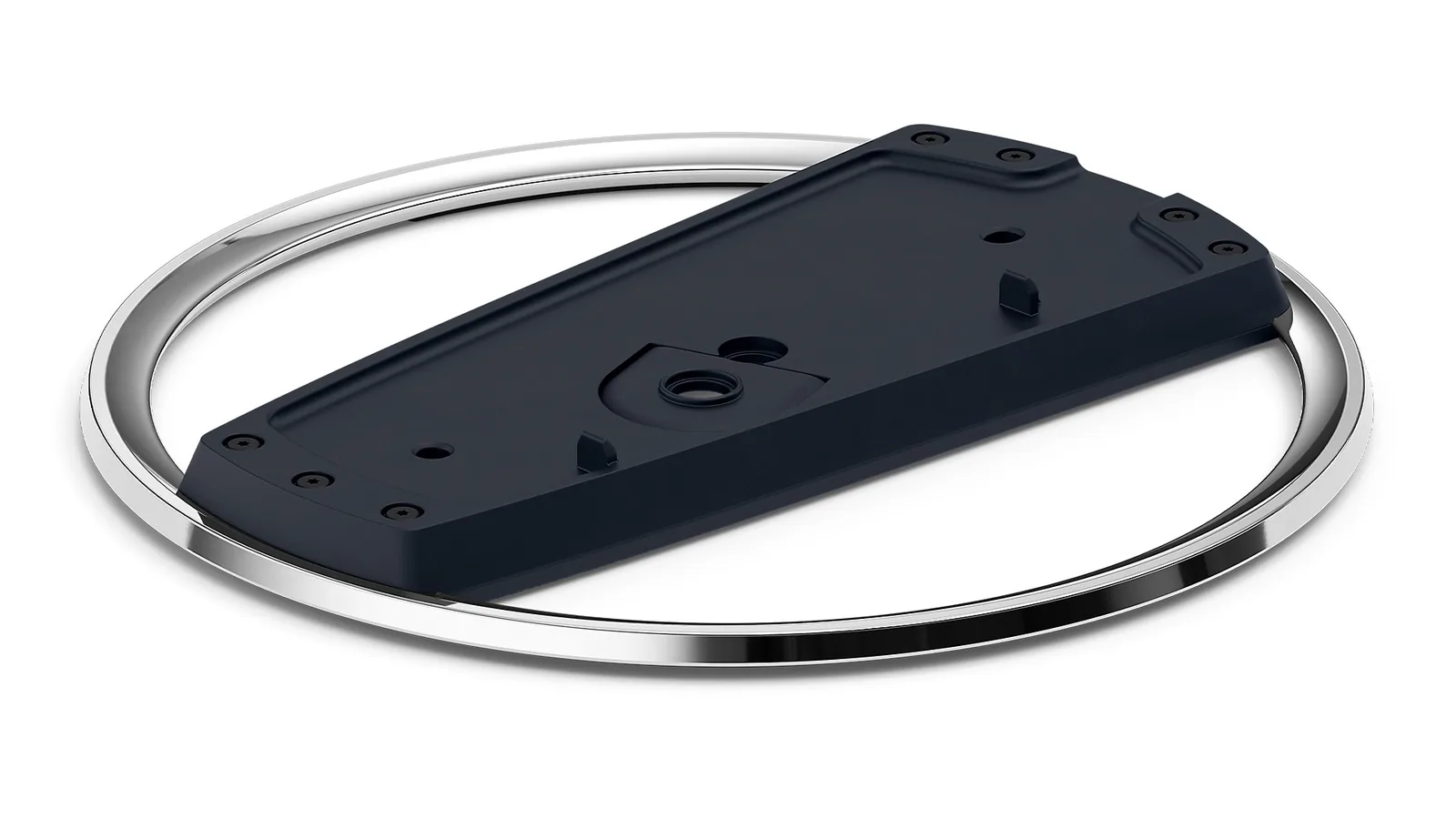
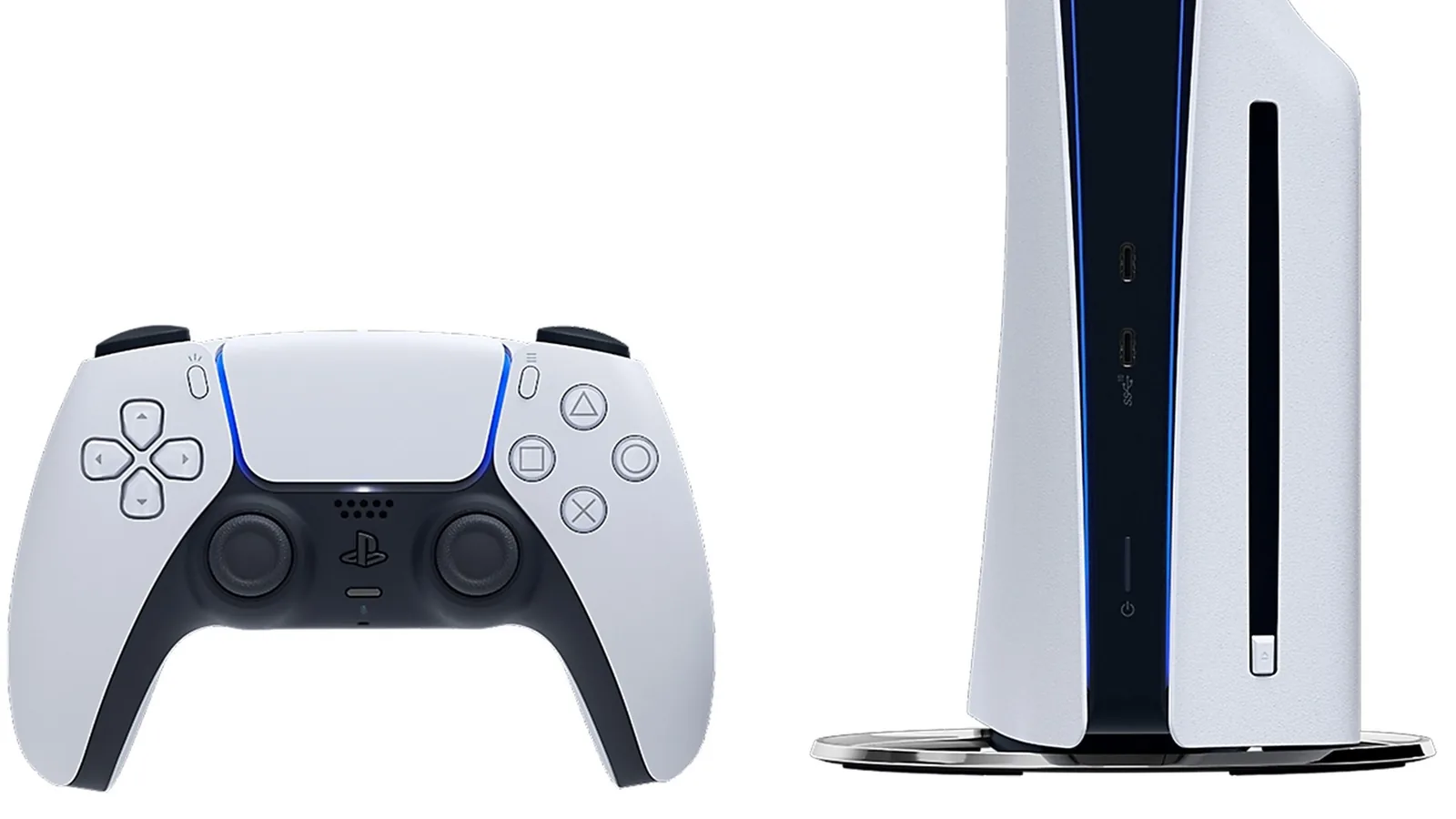
CE-100005-6 | The game or application can’t load. | On the home screen, highlight the game, press Options and select Delete. Reinstall a digital game from your library. Clean a disc with a soft, clean cloth from the centre towards the edge and insert it again. With the console standing vertically on its stand, the label side of the disc should face left. |
CE-110538-8 | Failed to read Blu-ray disc. | Check the disc for fingerprints, smudges or scratches, try another disc and make sure it is inserted correctly. The disc drive in the console itself may be at fault. If nothing helps, contact support or use Fix & Replace. |
CE-108255-1 | An error occurred with the game/application. | Update the game. For more help, Sony points you to PlayStation Repairs. |
CE-107857-8 | An error occurred while loading or updating the application. | Restart the console. Update both the system software and the game. If the error keeps coming back, delete the game in Settings > Storage and reinstall it. The last step is Safe Mode and Clear Cache and Rebuild Database > Rebuild Database. |
How to start the console in Safe Mode and what each option does is covered in our guide for when the PS5 won’t start. Read it before you select anything in Safe Mode.
System and game updates
| Code | What the console says | What Sony tells you to do |
|---|---|---|
CE-100002-3 | Failed to update the application. | Restart the console. Update the system software via Settings > System > System Software > System Software Updates and Settings. If that does not help, delete the game, reinstall it and update it. |
CE-107938-8 | Failed to update the application. | Often caused by turning the console off during an update. Restart, update the system, then highlight the game, press Options and select Check for update. If the issue persists, delete and reinstall the game. |
CE-106485-4 | There may be a problem reading the system software or application data. | Update the system software to the latest version. |
WS-116522-7 | The latest version of system software is not recognized and the update failed. | Depends on how you update. Over the internet: restart, use a wired connection, switch the router and modem off for at least 5 minutes. Via USB: download the latest version and check the file name and save location. From a game disc: clean the disc. Otherwise try another update method. |
NP-102946-2 | Please install the latest update file. | Connect the console to the internet and install the update. If the update fails, free up space and try again. If an update is already running, let it finish. |
Storage and external drives
| Code | What the console says | What Sony tells you to do |
|---|---|---|
CE-100028-1 | There is not enough free space on the SSD. | Go to Settings > Storage > System Storage, select the data and choose Delete. Or highlight the content on the home screen, press Options and select Delete. |
CE-100006-7 | The external storage drive cannot be recognised. | Update the system. Unplug the USB cable and plug it back in, directly into the console without a USB hub. A drive used as extended storage for the first time must be formatted in Settings > Storage > Extended Storage. Transfer content one item at a time. If nothing helps, try another drive. |
CE-108262-9 | An error occurred while reading the system software or application data. | Update the system. Delete the game in Settings > Storage and reinstall it. Then Safe Mode and Rebuild Database. Resetting the console is the very last step (see the warning below). |
Careful with CE-108262-9: resetting the console via Settings > System > System Software > Reset Options > Reset Your Console erases all data stored on the console. Sony recommends backing up first and reinstalling the game after the reset.
What you can safely delete is explained in our guide to freeing up space. If you keep running out, have a look at PS5 SSD expansion.
Downloads and data transfer
| Code | What the console says | What Sony tells you to do |
|---|---|---|
CE-107928-7 | An error has occurred that stopped the game from downloading on your PlayStation®5 console. | Delete the game and download it again, without turning the console off during the download. Test your connection in Settings > Network > Connection Status > Test Internet Connection. Switch off the modem and router for 5 minutes. |
CE-112069-9 | An error occurred on data transfer via a network. | Applies to PS4 to PS5 transfers. Connect both consoles by cable instead of Wi-Fi, or link them directly with an Ethernet cable. Switch the router off for at least 5 minutes and restart the transfer in Settings > System > System Software > Data Transfer. If you only need save data, use online storage or a USB drive. |
CE-117722-0 | Your streaming connection has an error. | Run Settings > Network > Test Internet Connection, use a wired connection, switch the router and modem off for at least 5 minutes, update the router firmware and check free space in Settings > Storage. |
For CE-112069-9, Sony specifically says not to run the network test or put the console into rest mode manually while a background transfer is running. The full process is in our guide to transferring PS4 data.
Network and PlayStation Network
| Code | What the console says | What Sony tells you to do |
|---|---|---|
NW-102636-8 | The connection to PlayStation® has timed out. | Review your connection settings. Switch the modem and router off for more than 5 minutes. On Wi-Fi, move the console closer to the router. Check the game server on the developer’s site and the PlayStation status page, then wait a while. |
NW-102307-3 | A communication error has occurred while connecting to PlayStation®. | Check the status page first (outage or maintenance). Then restart, use a cable, switch the router and modem off for at least 5 minutes. Router firmware and turning off port filtering go through your internet provider. Finally, try a static IP in Settings > Network > Settings > Set Up Internet Connection. |
NW-102417-5 | The connection to the network has timed out. | Sony’s step-by-step fix is covered in PSN not working. |
For network errors, Sony keeps pointing to the PlayStation status page. If it reports an outage or maintenance, the problem is not on your end.
Account, sign-in and suspended access
| Code | What the console says | What Sony tells you to do |
|---|---|---|
WS-116331-5 | Access to PlayStation® has been temporarily suspended. | Try signing in from another device, such as a PC or phone. If you cannot, the account is suspended for violating the terms of service. Details are in the email sent to your sign-in ID. |
WS-116367-4 | Access to PlayStation® has been suspended. | Check whether you can sign in from another device such as a PC. If not, the account is suspended for violating the terms of service. Sony points you to the terms of service and user agreement. |
WS-116332-6 | Access from your PlayStation®5 console may be prohibited or temporarily unavailable. | Access from the console may be prohibited, for example for a terms of service violation. If it is not, the server is temporarily unavailable: check the game server and the status page and try again later. |
WS-116329-2 | Your sign-in ID or password doesn’t match. | Check your ID and password in Settings > Users and Accounts > Account. Passwords are case sensitive. You can also try signing in from another device, such as a PC. |
WS-117176-3 | There may be a problem with your 2-step verification settings. | The phone number you are adding may already be registered to another account. Remove it there or use another number. On PS5 this is in Settings > Users and Accounts > Account > Security > Mobile Number. |
For the three suspension codes (WS-116331-5, WS-116367-4 and WS-116332-6), Sony gives no technical fix. What matters is whether you can sign in from another device, and the explanation is in Sony’s email or with PlayStation Support.
What to do if your code is not listed
- Write the code down exactly, hyphens included.
- Search for it on Sony’s page.
- Follow the steps in the order Sony lists them.
- If nothing works, contact PlayStation Support or PlayStation Repairs.
If the console does not boot at all and never shows a code, start with the power light as described in our power-on guide. Errors in PlayStation games on PC have their own series of codes at Sony, see our guide to PlayStation PC games.
Join our Discord if your code is not here, other PS5 players are happy to help: GamersTogether Discord.
FAQ
The console reports an error with the game or application. Sony says to update the game, and if that does not help, to go to PlayStation Repairs.
That is code CE-100028-1. In Settings > Storage > System Storage, select the data you do not need and choose Delete. You can do the same from the home screen with the Options button.
Possibly. Try signing in from another device, such as a phone or PC. If you cannot, Sony says the account is suspended for violating the terms of service, and the details are in the email sent to your sign-in ID.
Yes. Reset Your Console erases all data stored on the console, which is why Sony lists it as the very last step for CE-108262-9 and recommends a backup first.
On Sony’s PS5 error codes page, which has a search box. We only include codes that Sony has published its own fix for.
Information verified on 20 October 2026. More console guides are in our PlayStation section.